
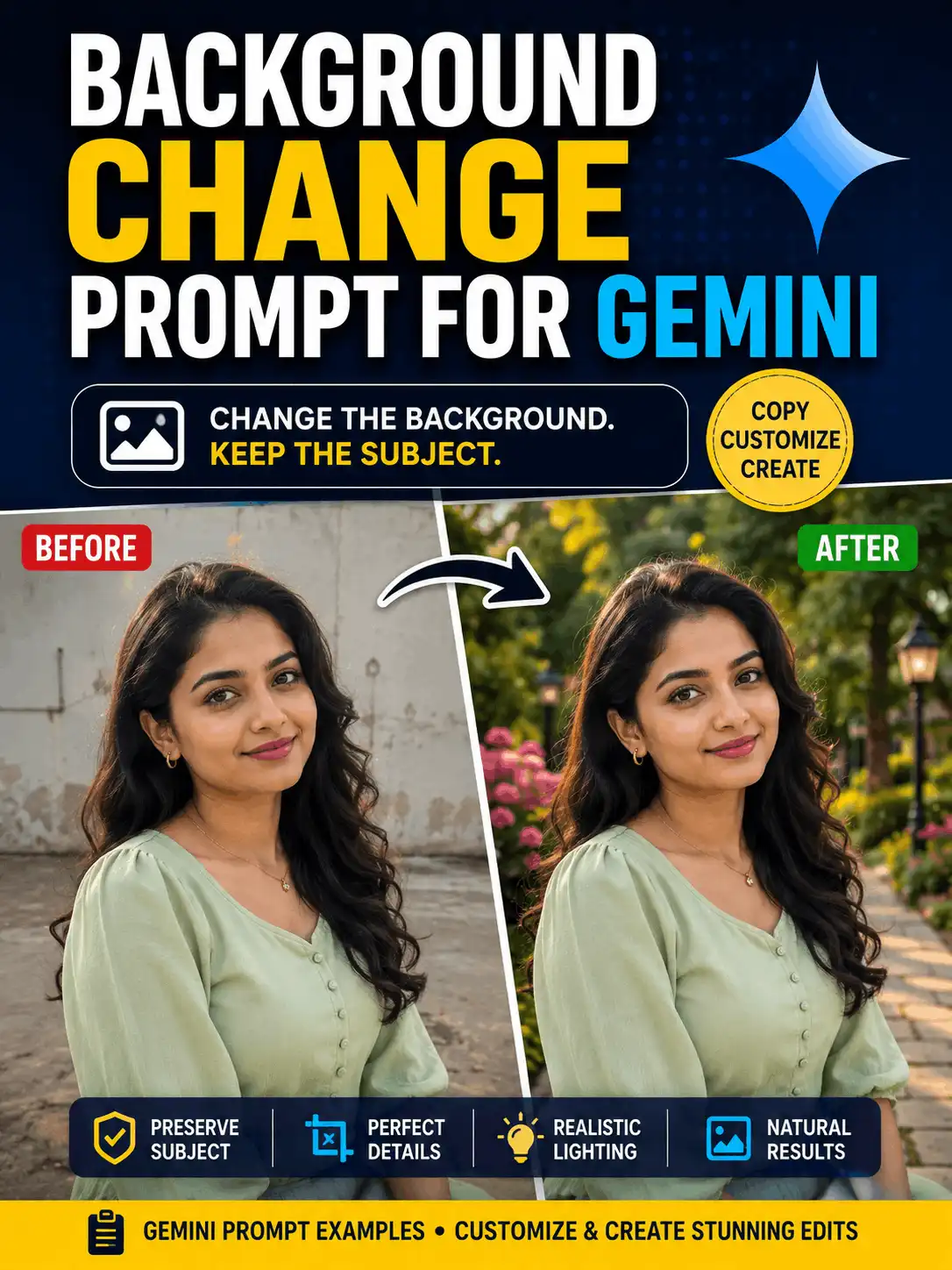
Background Change Prompt for Gemini
Need to replace a distracting photo background without changing the person or object? A clear background change prompt for Gemini separates the setting you want to replace from the subject details that must remain unchanged.
This guide provides a reusable formula, nine copy-ready prompt templates, practical preservation instructions, image-ratio guidance and fixes for common editing problems. Add your own permitted source images and original before-and-after results beside the matching prompts. Results can vary by Gemini model, source image, prompt wording and current platform capabilities, so review every edit before publishing or sharing it.
| QUICK ANSWER A background change prompt for Gemini should name the replacement setting and clearly state what must stay unchanged. Describe the background, lighting, depth and framing, then preserve the subject’s face, hair, clothing, pose, body proportions and important objects. Review edges, shadows, reflections and visible text before using the edited image. |
What Is a Background Change Prompt for Gemini?
A background prompt tells an image-editing tool what setting should appear behind an existing person, group, product or object. A useful background change prompt does more than name a place. It also explains the new light, depth, perspective and ground contact so the replacement setting fits the source image.
The most reliable editorial structure has two clear parts: Change the background and Preserve the subject. The first describes the replacement scene. The second protects the face, hair, clothing, pose, body proportions, people count and important objects. For a broader overview, see Google Gemini AI photo editing prompts.
Before You Change a Photo Background
Start with a source image you own, created yourself or have permission to edit. A clear photo with visible subject edges is easier to review than a small, heavily compressed or motion-blurred image.
- Identify fixed details: face, expression, hairstyle, clothing, accessories, pose, body proportions and people count.
- Check edge complexity: fine hair, transparent fabric, jewellery and fingers need careful blending.
- Choose the final crop: preserve the original framing or extend it for a new ratio.
- Notice existing light: record its direction, softness and color temperature.
- Keep important foreground elements: shadows, reflections, chairs or products may need to remain.
- Protect privacy: remove personal information from screenshots and avoid uploading images without permission.
For children, use respectful, age-appropriate and family-safe settings. Avoid sensitive, romantic, professional or misleading contexts.
Background Change Prompt Formula
Use this practical structure for a background prompt for Gemini:
| Edit request + replacement background + lighting and depth + preservation instructions + cleanup requirements + aspect ratio |
Fill-in version:
| Change only the background of the uploaded [portrait, group or object] to [new setting]. Add [time of day, atmosphere, depth and key background details]. Match the new [light direction, color temperature, perspective, shadows and reflections] to the source. Preserve exactly: [identity, face, skin tone, hair, clothing, pose, body proportions, people count and important objects]. Do not add [extra people, duplicate objects, text, logos or watermarks]. Keep [original crop or requested ratio]. |
| Instruction type | What to include |
| Change | Location, backdrop, time of day, weather, atmosphere, background objects, depth and crop. |
| Match | Light direction, brightness, color temperature, perspective, horizon, floor contact, shadows and reflections. |
| Preserve | Identity, face, skin tone, expression, hair, clothing, pose, hands, body proportions, people count and important objects. |
| Remove or avoid | Extra people, duplicate objects, edge halos, random text, logos, watermarks, misleading claims and unrelated edits. |
Best Background Change Prompt Templates for Gemini
The following templates cover nine distinct use cases. Customize the scene and preservation fields before use. Every original before-and-after example published on the page should be created from the exact prompt shown beside it and should include a real test date and result note.
Clean Studio Background Prompt
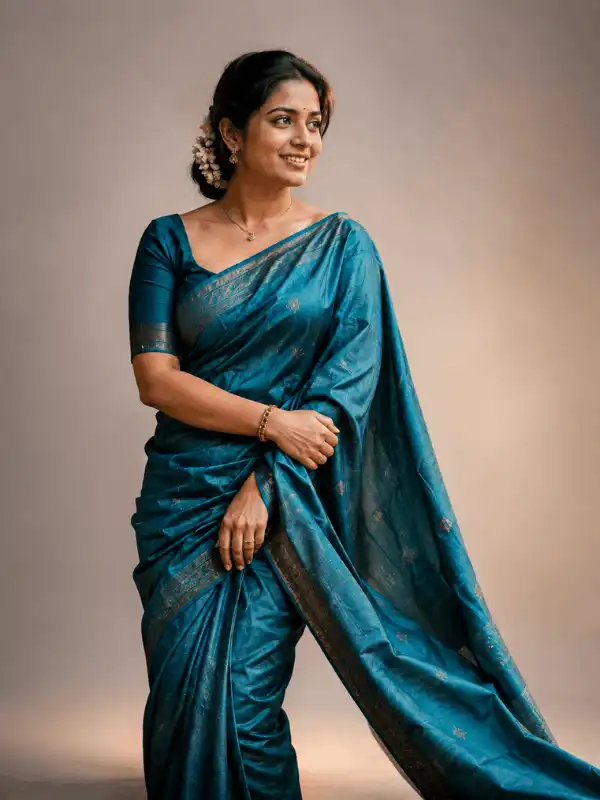

Edit the uploaded photo by changing only the background. Replace the current setting with a clean warm light-gray studio backdrop with a soft vertical gradient, subtle floor transition and realistic contact shadow beneath the subject. Match the new studio lighting to the direction, intensity and color temperature already visible on the subject. Keep the composition natural and professional with gentle background separation.

Preserve exactly: the subject’s recognizable face, facial features, skin tone, expression, hairstyle, clothing, accessories, pose, hands, body proportions and original number of people. Do not reshape the face or body. Do not change clothing colors. Do not add text, logos, watermarks, extra objects or extra people. Blend hair and clothing edges naturally. Keep the original crop unless additional space is required for a 4:5 portrait.
Best for: Profile portraits, author images and controlled editorial photos.
Customize: Backdrop color, gradient strength, light direction, shadow softness, crop and ratio.
Preserve: Face, skin tone, hair, clothing, pose, body proportions and accessories.
Suggested ratio: 1:1, 4:5 or 3:4
Review note: Inspect fine hair, shoulders, skin smoothing and the floor shadow. Remove any fake studio logos or generated text.
8K photo editing prompt
Professional Office Background Prompt
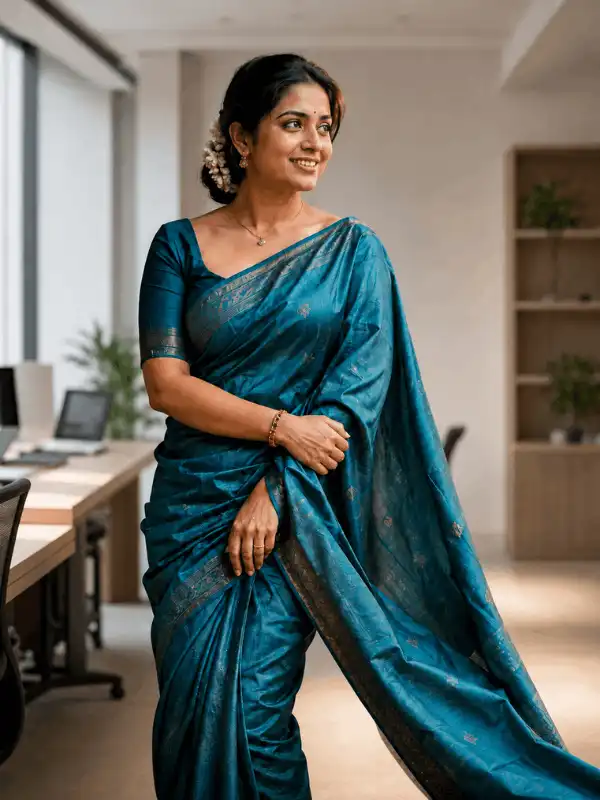
Change only the background of the uploaded portrait. Replace it with a clean modern office or coworking interior using neutral colors, soft window light, realistic architectural perspective and gentle background blur. Keep desks and shelves subtle and uncluttered. Match the light direction and shadow softness to the original subject so the person appears naturally present in the room.

Preserve exactly: identity, facial features, skin tone, expression, hair, clothing, jewellery, pose, hands, body proportions and original crop. Do not add employer names, company logos, certificates, awards, uniforms, badges or readable screen text. Do not imply a job, qualification or endorsement. Add no extra people. Use a natural 4:5 professional portrait composition.
Best for: Professional profiles, portfolios, author pages and business portraits.
Customize: Office style, window position, background depth, furniture level, crop and lighting.
Preserve: Identity, expression, clothing, pose and natural skin texture.
Suggested ratio: 1:1 or 4:5
Review note: Check perspective, window light and shoulder edges. The edit must not create a false employer or credential claim.
Google Gemini AI photo editing prompts
Outdoor Garden Background Prompt
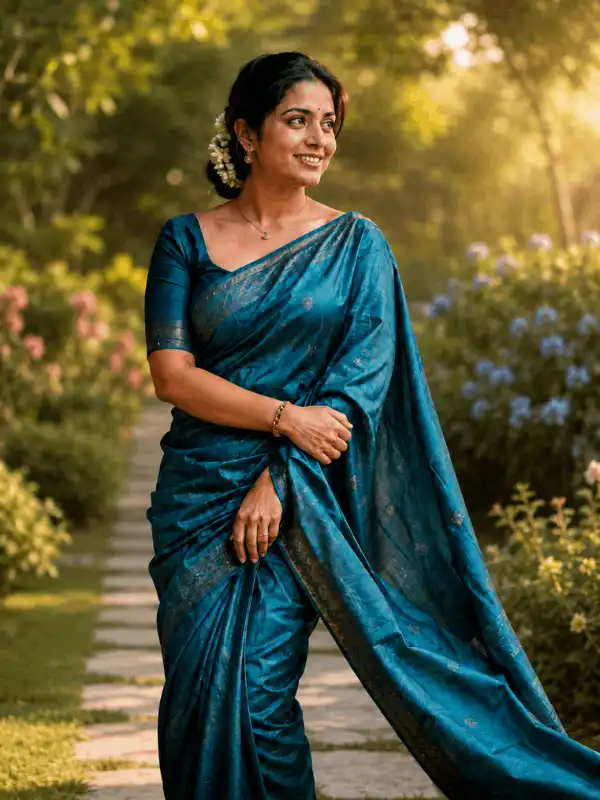
Replace only the background in the uploaded photo with a realistic landscaped garden during soft golden-hour light. Include natural green foliage, a few blue and pink flowers, a simple pathway and gentle depth of field without crowding the subject. Match the direction and warmth of the new sunlight to the existing highlights and shadows on the person. Keep realistic distance between the subject and the background.

Preserve exactly: the person’s recognizable face, skin tone, expression, hairstyle, clothing, jewellery, pose, hands, body proportions and fabric movement. Preserve fine hair strands and transparent fabric edges. Do not add butterflies, signs, text, logos, watermarks, extra people or duplicate objects unless explicitly requested. Use a natural 3:4 portrait crop.
Best for: Outdoor portraits, lifestyle images and social-feed photos.
Customize: Flower colors, foliage density, pathway, season, time of day, bokeh and ratio.
Preserve: Fine hair, transparent fabric, jewellery, pose and clothing movement.
Suggested ratio: 4:5 or 3:4
Review note: Look for edge halos, foliage crossing the body, broken jewellery and mismatched daylight.
Beach or Travel Background Prompt
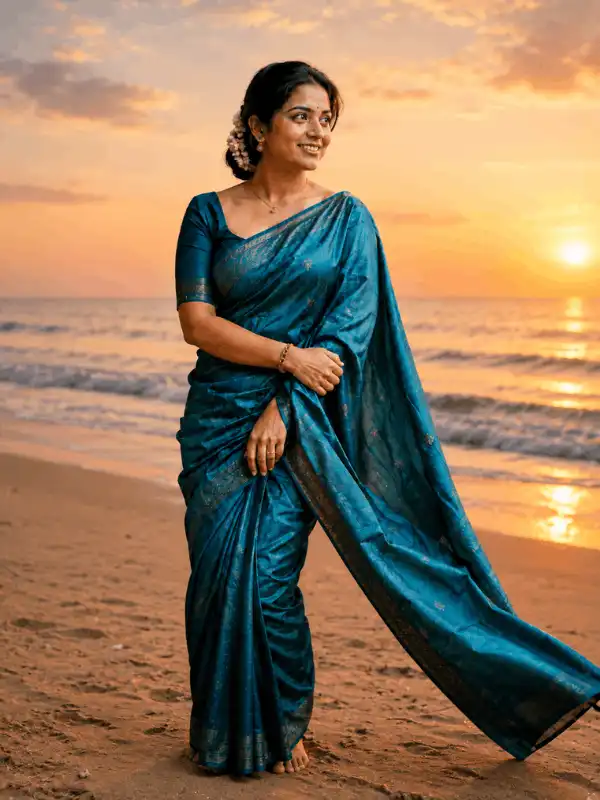
Change only the background of the uploaded full-length photo. Replace the current setting with a quiet sandy beach at sunset, a level ocean horizon, soft waves, warm sky colors and a light coastal atmosphere. Match the sunset direction to the highlights and shadows already visible on the subject. Keep realistic ground contact, foot placement, perspective and a natural shadow on the sand.

Preserve exactly: the subject’s identity, face, skin tone, hair, clothing, pose, body proportions, footwear and original number of people. Do not make the subject float. Do not add landmarks, crowds, signs, text, logos, watermarks or travel-brand elements. Keep the edit clearly creative rather than documentary. Use a 4:5 portrait or 9:16 vertical composition.
Best for: Creative travel-style portraits, Stories and vertical social posts.
Customize: Beach type, sky, water, sunset intensity, atmosphere, horizon and lens look.
Preserve: Identity, scale, pose, clothing, footwear and original people count.
Suggested ratio: 4:5 or 9:16
Review note: Check horizon level, foot contact, ground shadows and light direction. Do not present the edit as proof of travel or attendance.
Wedding or Celebration Background Prompt
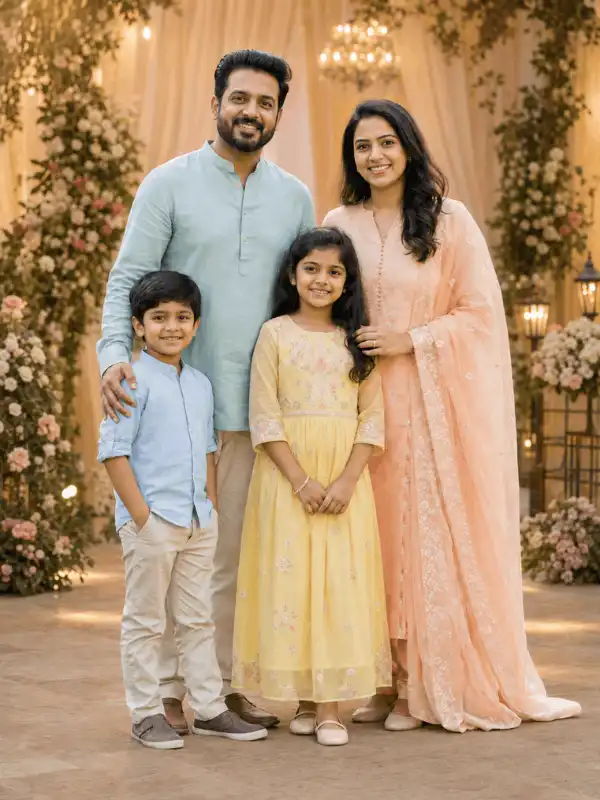
Replace only the background of the uploaded adult couple or family photo with an elegant celebration venue. Add soft floral arrangements, warm lamps, tasteful fabric decor, subtle golden lighting and realistic depth while keeping the scene uncluttered. Match the background perspective, light direction and shadow intensity to every person in the source image.

Preserve exactly: every person’s identity, face, skin tone, expression, hairstyle, clothing, jewellery, pose, height difference, interaction and relative position. Keep the exact number of people. Do not add guests, garlands, religious symbols, text, logos, banners or event names unless specifically required and verified. Do not alter relationships or imply that the image records a real ceremony. Use a 4:5 or 3:4 composition.
Best for: Adult couple portraits, family celebrations and creative occasion concepts.
Customize: Venue type, flowers, lamps, fabric, palette, depth and lighting mood.
Preserve: Every person, face, clothing, jewellery, expression and relative position.
Suggested ratio: 4:5 or 3:4
Review note: Check duplicate guests, hands, garlands, jewellery and false event context. Keep all romantic subjects adults.
Wedding prompt ideas
Traditional or Festival Background Prompt
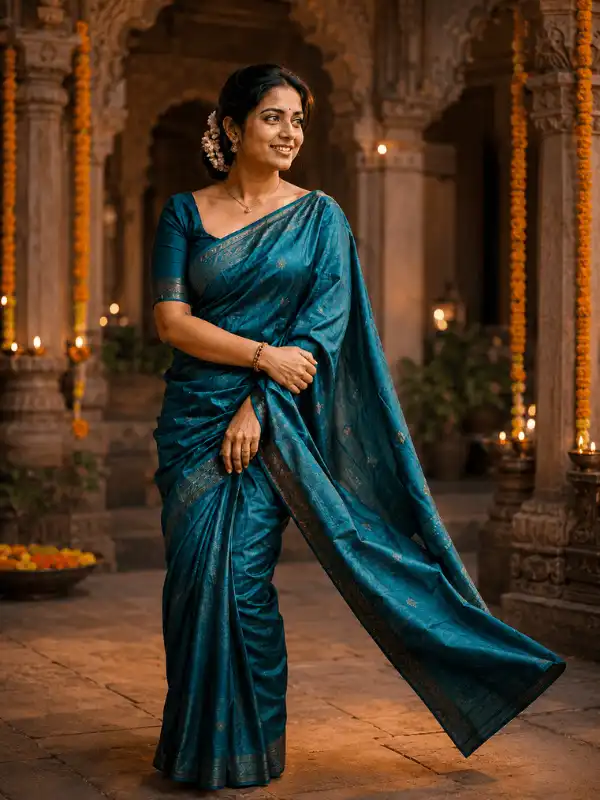
Change only the background in the uploaded traditional portrait. Replace it with a respectful Indian heritage courtyard featuring carved stone arches, a few marigold garlands, small oil lamps placed safely in the distance and warm ambient evening light. Keep the architecture detailed but secondary to the subject. Match the new light direction, color temperature and floor shadow to the original portrait.

Preserve exactly: the adult subject’s identity, facial features, skin tone, expression, hairstyle, traditional clothing, jewellery, bindi, pose, hands and body proportions. Preserve religious or cultural symbols accurately when they already appear in the source. Do not add sacred figures, readable text, logos, watermarks or misleading ritual claims. Use a 3:4 or 4:5 portrait composition.
Best for: Traditional portraits, culturally relevant edits and festival-style creative images.
Customize: Courtyard style, flowers, lamps, architecture, season, palette and time of day.
Preserve: Traditional clothing, jewellery, symbols, pose and facial details.
Suggested ratio: 3:4 or 4:5
Review note: Check cultural details, fabric edges, hands and lamp placement. Avoid misleading sacred or documentary claims.
Cinematic City or Night Background Prompt
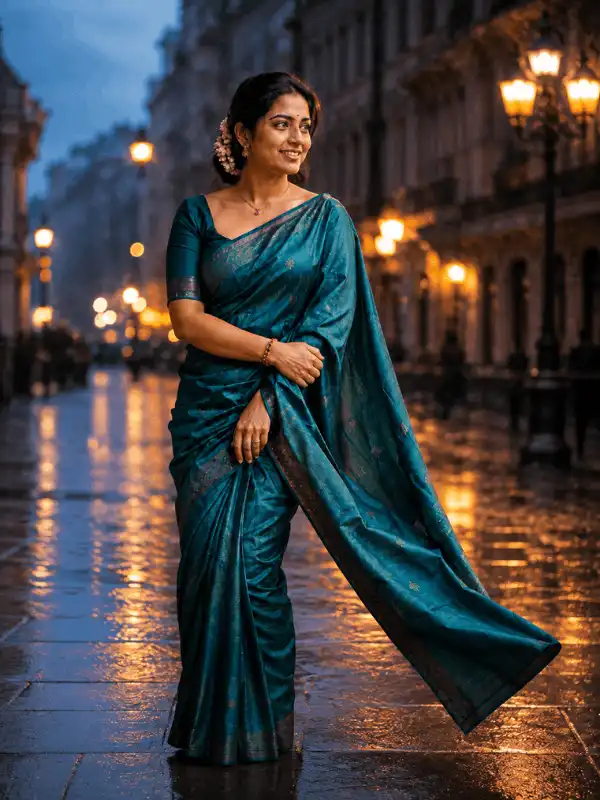
Replace only the background of the uploaded adult portrait with a cinematic city street during blue hour. Add soft out-of-focus streetlights, subtle wet-ground reflections, atmospheric depth and a controlled cool-to-warm color contrast. Match the rim light, reflection direction and shadow depth to the subject without changing the person’s original colors. Keep the city background realistic and uncluttered.

Preserve exactly: the subject’s recognizable face, skin tone, expression, hair, clothing colors, pose, hands and body proportions. Do not add readable signs, brand logos, watermarks, vehicles crossing the body or extra people. Avoid excessive neon, oversaturation and artificial skin smoothing. Use a 9:16 vertical or 3:4 editorial composition.
Best for: Cinematic portraits, Reels covers and mood-driven social images.
Customize: City style, evening or night, atmosphere, light colors, reflections, crop and ratio.
Preserve: Face, clothing colors, pose, hands and body proportions.
Suggested ratio: 9:16 or 3:4
Review note: Check rim light, reflections, skin color and signs. Remove random text, copied logos and excessive neon clutter.
Cinematic photo prompt guide
Group, Couple or Family Background Prompt
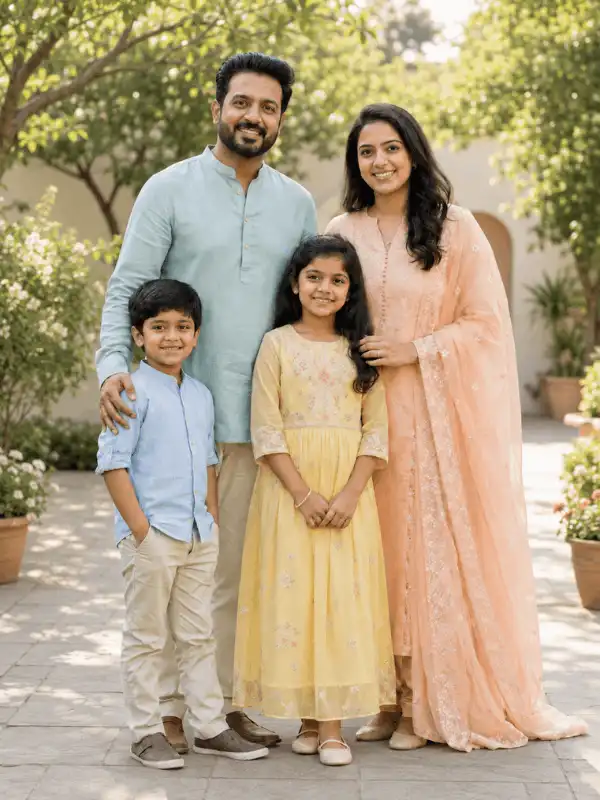
Change only the background of the uploaded group, adult couple or family photo. Replace the current setting with a bright, simple garden courtyard using soft morning light, natural greenery and enough open space around the group. Match the background perspective and lighting to all people. Keep the new scene free from crowds and distracting objects.

Preserve exactly: the existing number of people, every identity, face, skin tone, hairstyle, expression, age appearance, height difference, clothing, pose, hand placement, interaction and relative position. Do not add, remove, merge or duplicate people. Do not change relationships. Keep minors age-appropriate and family-safe. Avoid extra limbs, mismatched shadows, random text, logos and watermarks. Use 4:3 for a wide group or 3:4/4:5 for a vertical arrangement.
Best for: Family portraits, adult couple images and small group photos.
Customize: Venue, time of day, greenery, lighting, spacing, crop and group arrangement.
Preserve: Exact people count, identities, heights, clothing, poses and interactions.
Suggested ratio: 4:3, 3:4 or 4:5
Review note: Check every face, hand, height difference and shadow. Ensure no person is added, removed, duplicated or merged.
Product or Object Background Prompt

Change only the background of the uploaded product or handmade object photo. Replace the current setting with a clean warm-white tabletop and a softly graduated neutral backdrop. Add one subtle supporting prop only when it does not cover the object. Match the light direction, contact shadow and reflection behavior to the original product. Keep the composition simple and suitable for a clean 1:1 product image.

Preserve exactly: the object’s shape, proportions, material, color, texture, label, readable text and important design details. Do not invent certifications, prices, claims, ingredients, brand marks or endorsements. Do not alter label wording. Do not add hands, people, watermarks or unrelated products. Keep edges and reflections realistic.
Best for: Generic product displays, handmade crafts and clean object presentations.
Customize: Surface, backdrop color, prop, light direction, shadow, reflection and crop.
Preserve: Shape, color, material, label, proportions and important details.
Suggested ratio: 1:1 or 4:5
Review note: Compare the label and shape with the source. Remove invented text, false claims and inconsistent shadows.
How to Use the Prompt in Gemini
- Prepare a permitted source image. Choose the clearest version and list the details that must not change.
- Open the current Gemini image-editing experience available to you and select or upload the source image. Verify current instructions through official Google documentation before publishing screenshots or tool-specific claims.
- Customize one prompt. Replace the background details and keep the Change and Preserve instructions separate.
- Generate the edit and compare the result with the source rather than judging the new background alone.
- Revise one problem at a time: identity preservation, edges, lighting, shadows or background complexity.
- Record the tool or model name when known, date, ratio, source-image type and meaningful revisions.
- Publish only after checking permissions, current terms, AI disclosure and every visible defect.
A useful Gemini background change prompt remains stable even when the interface changes because it describes the editing goal rather than relying on a particular button name. AskExclusive can document real tests through its prompt testing methodology.
How to Customize the Background Prompt
Choose one clear location
Use one main scene such as a studio, office, garden, beach, heritage courtyard or city street. A crowded list of unrelated places usually produces a less coherent result.
Match time, weather and atmosphere
Specify morning, afternoon, sunset, evening or night. Add weather only when it helps the scene and does not conflict with the source subject.
Match lighting
Describe the direction, softness, brightness and color temperature. Ask the tool to reconcile the new scene with the existing highlights and shadows.
Control depth and perspective
State whether the background should be softly blurred or clearly detailed. Keep camera height, horizon position and scale compatible with the source.
Protect floor contact, shadows and reflections
Full-length subjects and products need a believable surface. Request realistic ground contact, a correctly placed shadow and material-appropriate reflections.
Choose the final crop
State whether the original crop should remain unchanged or whether Gemini may extend the frame. A photo background change prompt for a square profile needs different framing from a 9:16 Reel.
Preservation and Negative Instructions
Use a short preservation block containing only details relevant to the source. Excessively long negative lists can distract from the main edit.
| PRESERVATION BLOCK Portrait: preserve identity, face, skin tone, expression, hair, clothing, accessories, pose, hands and body proportions. Group: preserve the exact number of people, every identity, age appearance, height difference, clothing, position and interaction. Product: preserve shape, proportions, material, color, label, readable text and important details. Cleanup: no duplicate people, extra limbs, floating subjects, edge halos, mismatched shadows, random text, logos or watermarks. |
Do not use this page to change clothing. Keep the instruction “preserve clothing” here and use the separate Dress Change Prompt guide when clothing replacement is the actual goal.
Before-and-After Example Gallery
Place each permitted source image and edited result side by side or use an accessible comparison block. Directly below the pair, publish the exact prompt, source-image status, tool or model name when known, date, ratio, meaningful retries and one honest observation.
Do not label an edit perfect, guaranteed or one-click unless a documented test supports that description. The public page should show both successful details and visible limitations. For a broader matched prompt-and-result format, see Image with Prompt.
Which Background Should You Choose?
| Background type | Best use | Main review concern | Ratio |
| Clean studio | Profiles and editorial portraits | Hair edges and contact shadow | 1:1, 4:5 or 3:4 |
| Professional office | Author, portfolio or business portrait | Perspective and false credentials | 1:1 or 4:5 |
| Outdoor garden | Lifestyle and social portrait | Fine edges and daylight match | 4:5 or 3:4 |
| Beach or travel | Creative vertical portrait | Horizon, ground contact and sunlight | 4:5 or 9:16 |
| Wedding or celebration | Adult couple or family occasion concept | People count, jewellery and context | 4:5 or 3:4 |
| Traditional or festival | Heritage and cultural portrait | Symbols, clothing and respectful context | 3:4 or 4:5 |
| Cinematic city or night | Reels and mood-driven portrait | Rim light, reflections and text artifacts | 9:16 or 3:4 |
| Group, couple or family | Multi-person photo | Identity, height and duplicate people | 4:3, 3:4 or 4:5 |
| Product or object | Craft or clean product display | Label, shape, shadow and claims | 1:1 or 4:5 |
A simple background is often easier to match than a scene with crowds, signs, complex reflections and several light sources. Start simple when identity or edge preservation is the priority.
Image Ratio and Framing Guidance
| Ratio | Best use | Framing note |
| 1:1 | Square profile and product images | Keep the subject centered with safe space around edges. |
| 4:5 | Portrait social-feed posts | Good for head-to-knee or full portrait compositions. |
| 3:4 | Editorial portraits and article examples | Offers room for clothing and the replacement setting. |
| 9:16 | Stories, Reels and vertical covers | Keep faces, hands and important objects away from top and bottom edges. |
| 16:9 | Featured images and wide comparisons | Useful for split-screen before-and-after layouts. |
Tell Gemini whether to preserve the original crop or extend the scene. Extending the frame can introduce new hands, feet, clothing or objects, so review newly generated areas carefully.
Common Background-Change Problems and Fixes
| Problem | Likely cause | Prompt revision |
| Face or clothing changed | Too many simultaneous edits or weak preservation wording. | Repeat the exact preservation list and request only the background change in the next revision. |
| Hair edge or halo looks artificial | Poor separation between fine hair and the new scene. | Request clean natural edge blending while preserving individual hair strands and original hairstyle. |
| Lighting does not match | New scene uses a different direction, brightness or color temperature. | Match the new background light to the existing highlights and shadows on the subject. |
| Feet or product appears to float | Missing contact shadow, floor plane or perspective. | Request realistic ground contact, perspective and a soft shadow directly beneath the subject or object. |
| People or objects are duplicated | The prompt did not state the exact count. | State the exact number and say do not add, remove, merge or duplicate people or objects. |
| Random text, signs or logos appear | The background contains complex signage or branded objects. | Simplify the scene and request no generated text, logos, signs or watermarks. |
| Background is too busy | Too many props, colors or scene instructions. | Reduce the setting to one location, a limited palette and only one or two supporting details. |
| Result remains inconsistent | The source image is complex or revisions combine several problems. | Revise one issue at a time and record the limitation instead of claiming a guaranteed result. |
When the source photo is damaged, faded or scratched, use the dedicated old photo restoration prompt for Gemini instead of combining restoration and background replacement in one large request.
Frequently Asked Questions
What should a background change prompt include?
It should include the replacement setting, lighting and depth, details that must remain unchanged, cleanup requirements and the final image ratio. Separating Change and Preserve instructions makes the request easier to review.
How do I stop Gemini from changing the face?
Tell the tool to preserve the recognizable identity, facial features, skin tone, expression, hairstyle and age appearance. Request only the background change, and revise one problem at a time if the face still changes.
Can I keep the same clothes and pose?
Yes. State clearly that clothing, colors, accessories, pose, hand placement and body proportions must remain unchanged. Do not combine a background replacement with a dress-change request in the same edit.
Why does the new background look artificial?
The most common reasons are mismatched lighting, incorrect perspective, weak edge blending, missing ground shadows and an overly complex setting. Simplify the scene and match the background light to the source subject.
Which ratio is best for a profile photo or Reel?
Use 1:1 for a square profile, 4:5 for a portrait feed post and 9:16 for a Reel or Story. Specify whether Gemini should preserve the original crop or extend the frame.
Can I edit a family or group image?
Yes, but state the exact number of people and preserve every identity, height difference, outfit, pose and interaction. Check for duplicate faces, extra limbs, changed ages and inconsistent shadows.
Can I change a product background?
Yes. Preserve the product shape, color, material, label and important text. Do not let the edit invent certifications, prices, claims or endorsements.
Can I use the edited image commercially?
Commercial use depends on the source image, tool, account, current terms and other rights. Verify official Google terms and confirm that you own or have permission to edit the source image before commercial use.
How should an AI-edited image be disclosed?
Use a clear caption or disclosure when appropriate, especially when an edit could be mistaken for a real place, event, professional setting or documentary image. State that the image was AI-edited and that results may vary.
Related Gemini Photo Editing Guides
- Google Gemini AI Photo Editing Prompts
- Gemini AI Prompts
- Gemini Photo Editing Guides
- Old Photo Restoration Prompt Gemini
- Dress Change Prompt
- 8K Photo Editing Prompt
Final Thoughts
Choose one background type, customize the scene and separate the requested change from the details that must remain unchanged. Compare the result with the source, correct one problem at a time and publish only after checking identity, edges, lighting, people count, text and context.
About the Author
Swetha is an AI Prompt Creator and Digital Content Specialist. She is an MCA graduate with five years of experience in blogging, YouTube and social media, plus two years of experience in AI prompt creation. She uses Gemini and ChatGPT regularly to create practical AI image prompts, photo-editing ideas and beginner-friendly guides for AskExclusive.
Written and manually reviewed by Swetha.
AI Image and Editing Disclosure
| DISCLOSURE Some examples on this page may use AI-generated source images or AI-edited results. Each published example should state its source-image status and should be created from the prompt displayed beside it. Results can vary by tool, model, settings, source image and current platform capabilities. |