
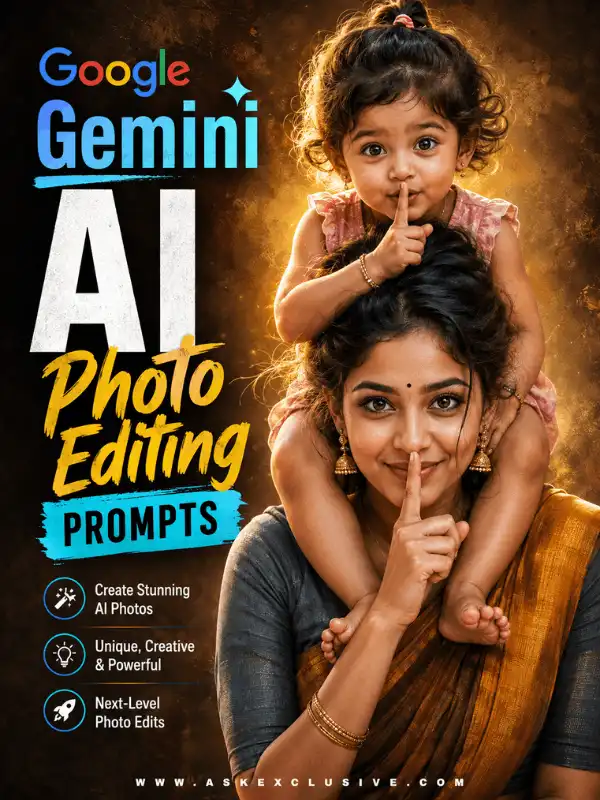
Google Gemini AI Photo Editing Prompts for Better Image Edits
Looking for useful Google Gemini AI photo editing prompts for editing an uploaded photograph?
This guide contains customizable prompts for changing backgrounds, restoring old photographs, improving portraits, correcting lighting, changing clothing, removing unwanted objects and preparing images for social media.
Choose the editing task that matches your photograph, copy the prompt and replace the details inside brackets with your preferences. A clear editing prompt should explain both what Gemini should change and what it should preserve.
Upload only photographs that you own or have permission to edit. Review every completed image carefully because faces, hands, clothing, body proportions, background objects and text may not always appear as expected.
Results can vary depending on the original image, available model, prompt wording and platform settings.
Quick Answer: What Are Google Gemini AI Photo Editing Prompts?
| Quick answer: Google Gemini AI photo editing prompts are written instructions that explain how an uploaded photograph should be modified. A useful prompt identifies the requested change, describes the intended result and explains which details—such as the face, age, skin tone, hairstyle, pose and body proportions—should remain unchanged. |
| Important: Upload only photographs you own or have permission to edit. Do not use AI editing to impersonate another person, create false evidence or misrepresent a real event. |
What Are Google Gemini AI Photo Editing Prompts?
A photo-editing prompt is an instruction used with an existing uploaded image. It tells the AI tool what part of the photograph should be changed, repaired, removed or improved.
This differs from a general image-generation prompt. An image-generation prompt describes a completely new picture, while a Gemini photo editing prompt works from an existing photograph and should protect the important details already present.
For example, a user may want to:
- Replace an untidy background
- Restore a faded family photograph
- Correct poor lighting
- Change an outfit
- Remove distracting objects
- Improve portrait quality
- Adjust an image for Instagram or Pinterest
- Create better background separation
A good prompt does not simply say, “Make this photo beautiful.” It explains the exact editing goal and identifies the details that must remain unchanged.
Even detailed instructions cannot guarantee identical results. Always inspect the edited image before downloading, publishing or sharing it.
Gemini AI Photo Prompt Copy Paste — Use this guide for creating new images rather than editing an uploaded photograph.
Simple Gemini Photo-Editing Prompt Formula
Use this reusable formula when writing a prompt for Gemini photo editing:
| Formula: Uploaded photo + requested change + details to preserve + new visual details + lighting and style + quality requirements |
| Basic formula Edit the uploaded photo by [describe the change]. Keep [list the important details] unchanged. Add [new background, clothing, lighting or visual details]. Maintain [realistic texture, accurate proportions and natural colours]. Do not add [unwanted objects, random text, logos or watermarks]. |
| Example Edit the uploaded portrait by replacing the current background with a softly blurred garden. Keep the person’s face, age, skin tone, hairstyle, pose and body proportions unchanged. Improve the lighting naturally and maintain realistic skin texture, accurate hands and detailed clothing. Do not add text, logos, duplicate people or unrelated objects. Customize: Background, lighting style and colour palette Preserve: Face, age, skin tone, hairstyle, pose and body proportions Recommended ratio: Original ratio |
What Every Editing Prompt Should Explain
- The photograph being edited
- The exact change required
- The details that must remain unchanged
- The intended background or setting
- Clothing or accessory changes
- Lighting requirements
- Colour and contrast preferences
- Image style
- Quality requirements
- Image ratio, when relevant
- Details that must not appear
Quick Google Gemini AI Photo Editing Prompt Copy-Paste Examples
These short examples help you begin editing quickly. Customize every prompt before using it.
| 1. Background replacement Edit the uploaded photograph by replacing the current background with a peaceful green garden during golden hour. Keep the person’s face, skin tone, hairstyle, clothing, pose and body proportions unchanged. Match the new background lighting and shadows naturally. Add gentle depth of field and realistic colours. Do not add extra people, text, logos or unrelated objects. Customize: New setting, time of day, depth of field and colours Preserve: Face, skin tone, hairstyle, clothing, pose and proportions Recommended ratio: Original ratio |
| 2. Portrait enhancement Enhance the uploaded portrait with balanced natural lighting, accurate colour correction and gentle background separation. Keep the person’s facial structure, complexion, age, expression and hairstyle unchanged. Preserve natural skin texture and realistic details. Avoid excessive smoothing, artificial sharpening or changes to the face. Customize: Lighting, colour balance and background separation Preserve: Facial structure, complexion, age, expression and hairstyle Recommended ratio: 3:4 or 4:5 |
| 3. Old-photo restoration Restore the uploaded old photograph by reducing scratches, dust, fading and minor damage. Preserve every person’s identity, facial features, clothing, pose and original composition. Improve clarity and contrast carefully without creating an artificial modern appearance. Do not invent missing facial details. Customize: Damage type, contrast and colour treatment Preserve: Identity, clothing, pose and composition Recommended ratio: Original ratio |
| 4. Clothing change Edit the uploaded portrait by replacing the current outfit with a simple blue silk saree and matching blouse. Keep the person’s face, skin tone, hairstyle, expression, pose and body shape unchanged. Add realistic fabric folds, natural shadows and accurate proportions. Do not change the background unless required. Customize: Outfit, colour, fabric and accessories Preserve: Face, skin tone, hairstyle, pose and body shape Recommended ratio: Original ratio |
| 5. Object removal Remove the distracting people and signboard from the background of the uploaded photograph. Keep the main person, clothing, pose and foreground unchanged. Rebuild the cleared background naturally with consistent lighting, perspective and texture. Do not remove any part of the main subject. Customize: Object type, location and reconstructed surface Preserve: Main person, clothing, pose and foreground Recommended ratio: Original ratio |
Quick Prompt-Selection Table
| Editing goal | Prompt category | Most important instruction | Related guide |
| Replace the setting | Background change | Preserve the subject, pose and clothing | Background Change Prompt for Gemini |
| Repair an old photograph | Photo restoration | Preserve identity and period details | Old Photo Restoration Prompt Gemini |
| Improve image quality | Portrait enhancement | Avoid artificial smoothing | 8K Photo Editing Prompt |
| Correct poor lighting | Lighting correction | Maintain natural skin tone | This pillar section |
| Change an outfit | Clothing edit | Preserve face and body proportions | Dress Change Prompt |
| Remove distractions | Object removal | Do not modify the main subject | This pillar section |
| Prepare a social post | Crop and composition | Preserve the complete subject | This pillar section |
| Improve a profile picture | Portrait cleanup | Keep facial structure unchanged | Related quality guide |
How to Edit a Photo Using a Gemini Prompt
The exact interface and available features may change, but the following basic workflow can help wherever photo uploading and editing are supported.
Step 1: Select a Suitable Photograph
Choose a clear photograph with visible facial details, suitable lighting and sufficient image quality.
A severely blurred, compressed or damaged image may be more difficult to edit accurately.
Step 2: Upload the Photograph
Upload the image only in a Gemini experience where image editing is available.
Use only your own photograph, a photograph you have permission to edit, licensed material that allows modification or public-domain material where applicable.
Step 3: Choose One Main Editing Goal
Decide what you want to change before writing the prompt.
A single clear objective often produces a more controlled result than several unrelated changes in one instruction.
Step 4: Customize the Prompt
Replace the example details with your own requirements.
Explain what should change, what should remain unchanged, what the finished result should look like and what Gemini must avoid adding.
Step 5: Submit the Editing Request
Paste the customized Gemini edit prompt with the uploaded image.
Keep the wording direct. Long prompts can be useful, but every sentence should have a clear purpose.
Step 6: Inspect the Output
Review the face, eyes, expression, hands, fingers, proportions, clothing, jewellery, background objects, shadows, reflections, random text, logos and cropped body parts.
Step 7: Refine the Prompt
When something is incorrect, describe the problem directly and request only the needed correction.
| Revision example Keep the previous background edit, but restore the person’s original facial structure, hairstyle and expression. Remove the added text from the wall and correct the right hand while keeping the original pose unchanged. |
Background Change Prompts for Gemini
Background replacement is one of the most common uses of a Gemini AI photo editor. A clear background prompt should describe the new setting while protecting the original subject. It should also ask Gemini to match the perspective, light direction, shadows and colour temperature.
Avoid vague instructions such as “change to a beautiful background.” Explain whether you want a garden, beach, café, temple courtyard, studio, mountain view or city street.
| Heritage courtyard background Edit the uploaded photo by replacing the current background with an elegant heritage courtyard during golden hour. Keep the person’s face, skin tone, hairstyle, clothing, pose and body proportions unchanged. Match the new background lighting naturally and add soft depth of field. Maintain realistic shadows, perspective and colours. Do not add duplicate people, random objects or text. Customize: Courtyard style, architectural details and time of day Preserve: Face, skin tone, hairstyle, clothing, pose and proportions Recommended ratio: Original ratio |
| Professional studio background Replace the existing background with a clean professional studio setting in a soft neutral tone. Preserve the person’s face, age, hairstyle, expression, clothing and pose. Add balanced studio lighting, natural shadows and gentle subject separation. Keep the result realistic and suitable for a professional profile photograph. Customize: Studio colour and lighting direction Preserve: Face, age, hairstyle, expression, clothing and pose Recommended ratio: 4:5 |
| Outdoor garden background Replace the background of the uploaded portrait with a softly blurred flower garden during early morning. Keep the main person and all facial details unchanged. Match the sunlight direction with the original photograph and preserve realistic clothing texture, hair edges and body proportions. Customize: Flowers, season, lighting and blur Preserve: Facial details, hair edges, clothing and proportions Recommended ratio: Original ratio |
Background Change Prompt for Gemini — Open the complete collection of focused background-replacement prompts.
Old Photo Restoration Prompts for Gemini
Old-photo restoration prompts can help reduce visible scratches, fading, dust, stains and minor damage. The purpose should be restoration rather than reinvention. Ask Gemini to preserve the identity, clothing, pose, original composition and historical appearance of the photograph.
Avoid asking for an entirely new face or modern clothing. When details are missing, do not request invented features that could misrepresent the original person.
| Old photograph restoration Restore the uploaded old photograph by reducing scratches, dust, stains, fading and minor damaged areas. Preserve every person’s original identity, facial structure, age, hairstyle, clothing, pose and position. Retain the historical appearance and original composition. Improve clarity, contrast and tonal balance carefully without excessive sharpening or artificial smoothing. Do not invent missing facial details. Customize: Damage type, clarity and tonal balance Preserve: Identity, clothing, pose, position and historical appearance Recommended ratio: Original ratio |
| Careful colourization Carefully colourize the uploaded black-and-white photograph using natural and historically appropriate colours. Preserve all faces, clothing, poses, background structures and original composition. Use balanced skin tones and subtle fabric colours. Do not modernize the clothing, change the identities or add objects that are not visible in the original image. Customize: Colour palette and historical period Preserve: Faces, clothing, poses, structures and composition Recommended ratio: Original ratio |
Old Photo Restoration Prompt Gemini — Open the complete old-photo restoration guide.
Portrait Enhancement Prompts
Portrait enhancement should improve the visible quality of a photograph without completely changing the person. Useful improvements may include balanced lighting, better colour correction, reduced harsh shadows, improved background separation, gentle eye clarity, natural contrast, controlled sharpness and realistic skin texture.
Avoid instructions such as “make the face perfect” or “completely beautify the person.” These may lead to unwanted changes in facial structure, age or recognizable identity.
| Natural portrait enhancement Enhance the uploaded portrait with balanced natural lighting, improved colour correction and gentle background separation. Keep the person’s facial structure, skin tone, age, expression and hairstyle unchanged. Preserve visible skin texture and realistic facial details. Improve eye clarity carefully without changing the eye shape. Avoid excessive smoothing, artificial makeup or face reshaping. Customize: Lighting, colour correction and background separation Preserve: Facial structure, skin tone, age, expression and hairstyle Recommended ratio: 3:4 or 4:5 |
| Low-light portrait improvement Improve the uploaded low-light portrait by increasing exposure carefully, recovering natural facial details and reducing distracting noise. Preserve the original face, skin tone, hairstyle, clothing, pose and background composition. Maintain realistic shadows and avoid an over-bright or artificial appearance. Customize: Exposure, noise reduction and shadow recovery Preserve: Face, skin tone, hairstyle, clothing, pose and composition Recommended ratio: Original ratio |
Improve Image Quality with AI Prompts — Read the detailed image-quality and enhancement guide.
Clothing Change Prompts
A clothing-change prompt should clearly describe the complete replacement outfit, including colour, material, fit, sleeves, accessories and style. It should also explain what must remain unchanged. Clothing replacement should not alter the person’s face, body shape, pose or unrelated parts of the photograph.
| Traditional saree prompt Edit the uploaded portrait by replacing the current outfit with an elegant teal silk saree with a matching blouse and subtle gold border. Keep the person’s original face, complexion, hairstyle, expression, pose and body proportions unchanged. Add realistic fabric folds, natural shadows and accurate draping. Do not change the background or add heavy jewellery. Customize: Saree colour, fabric, blouse design and jewellery Preserve: Face, complexion, hairstyle, expression, pose and proportions Recommended ratio: Original ratio |
| Formal clothing prompt Replace the current clothing with a well-fitted dark formal suit and a simple light-coloured shirt. Preserve the person’s face, age, hairstyle, pose, hands and body proportions. Match the fabric lighting and shadows with the original photograph. Keep the result natural and suitable for a professional profile. Customize: Suit colour, shirt colour and fit Preserve: Face, age, hairstyle, pose, hands and proportions Recommended ratio: 4:5 |
Clothing-Change Editing Prompts — Read the complete dress-change prompt guide.
Lighting and Colour-Correction Prompts
Lighting correction can improve an image without replacing the subject or background. Describe the specific problem, such as an image that is too dark, harsh facial shadows, a strong yellow colour cast, oversaturated colours, unnatural skin tone or a background brighter than the subject.
| Dark photograph correction Correct the exposure of the uploaded photograph by gently brightening the face and important subject details. Preserve the original skin tone, facial structure, clothing, background and mood. Recover shadow detail without creating washed-out highlights or an artificial HDR effect. Customize: Brightness, shadow recovery and highlight control Preserve: Skin tone, facial structure, clothing, background and mood Recommended ratio: Original ratio |
| Warm indoor-light correction Correct the strong yellow colour cast in the uploaded indoor photograph. Restore balanced skin tones, neutral whites and natural clothing colours. Keep the face, expression, pose, background and lighting direction unchanged. Avoid making the photograph cold or desaturated. Customize: Colour temperature and neutral whites Preserve: Face, expression, pose, background and light direction Recommended ratio: Original ratio |
| Oversaturation reduction Reduce the excessive colour saturation in the uploaded image. Restore balanced skin tones, natural greenery and realistic clothing colours. Preserve the existing subject, composition, lighting and background. Maintain gentle contrast without creating a dull or grey appearance. Customize: Saturation and contrast level Preserve: Subject, composition, lighting and background Recommended ratio: Original ratio |
| Golden-hour adjustment Add a subtle golden-hour lighting effect to the uploaded portrait. Preserve the person’s face, hairstyle, clothing, pose and background structures. Add warm side lighting, realistic highlights and soft shadows without changing the original identity or making the colours excessively orange. Customize: Light direction, warmth and highlight strength Preserve: Face, hairstyle, clothing, pose and structures Recommended ratio: Original ratio |
Remove Unwanted Background Objects
Object-removal prompts should identify the unwanted item and its location. Instead of saying “clean the background,” explain whether Gemini should remove a person, vehicle, signboard, cable, chair, rubbish bin or another distraction. The reconstructed area should match the original perspective, light and texture.
| Background people removal Remove the distracting people standing in the far-left and centre background. Keep the main person, clothing, pose, foreground and all nearby objects unchanged. Reconstruct the cleared background naturally using consistent perspective, shadows, texture and lighting. Do not remove any part of the main subject. Customize: Number and location of background people Preserve: Main person, clothing, pose, foreground and nearby objects Recommended ratio: Original ratio |
| Signboard removal Remove the large signboard behind the subject and reconstruct the wall naturally. Preserve the main person, hair edges, clothing, pose and surrounding architecture. Match the wall colour, texture, perspective and shadows. Do not add text, logos or new decorations. Customize: Signboard location and wall material Preserve: Main person, hair edges, clothing, pose and architecture Recommended ratio: Original ratio |
| Small distraction cleanup Remove the plastic bottle near the subject’s feet and the loose cable in the right background. Keep the person, floor pattern, clothing and complete composition unchanged. Rebuild the cleared areas naturally without repeated patterns or blurred patches. Customize: Object type, location and surface texture Preserve: Person, floor pattern, clothing and composition Recommended ratio: Original ratio |
Social-Media Crop and Composition Prompts
Social-media editing may require a different image ratio or additional safe space for text. When changing the ratio, ask Gemini not to crop the head, hands, feet or important clothing.
| Instagram portrait crop — 4:5 Reframe the uploaded photograph into a 4:5 vertical portrait for an Instagram feed post. Keep the complete head, shoulders and important clothing visible. Preserve the person’s face, body proportions, pose and background details. Extend the background naturally where necessary. Do not stretch or distort the subject. Customize: Subject position and safe space Preserve: Head, shoulders, clothing, face, proportions and pose Recommended ratio: 4:5 |
| Story or Reel crop — 9:16 Convert the uploaded photograph into a 9:16 vertical composition for a Story or Reel cover. Keep the complete subject visible and place the person slightly below the centre with clean space above for a headline. Extend the background naturally without duplicating objects or changing the person. Customize: Subject position and headline safe space Preserve: Complete subject and identity Recommended ratio: 9:16 |
| Square post — 1:1 Reframe the uploaded photograph into a balanced 1:1 square composition. Keep the main subject centred and preserve the complete face, hands and important clothing details. Extend or crop the background naturally without changing the original identity or proportions. Customize: Subject centring and crop boundary Preserve: Face, hands, clothing, identity and proportions Recommended ratio: 1:1 |
How to Preserve the Original Face
Unwanted facial changes are among the most common problems in AI photo editing. Clear preservation instructions may reduce these changes, but no prompt can guarantee exact identity preservation in every output.
Use a clear reference photograph and avoid combining preservation instructions with conflicting requests such as changing the person’s age, facial shape or expression.
| Recommended face-preservation instruction Preserve the original facial structure, complexion, eyes, eyebrows, nose, lips, jawline, age, hairstyle and recognizable identity. Do not replace, reshape, beautify or reinterpret the face. |
| Expanded preservation prompt Edit only the requested part of the uploaded photograph. Preserve the original face exactly as closely as the available editing system allows, including the facial structure, complexion, eye shape, eyebrows, nose, lips, jawline, age, expression and hairstyle. Do not apply a beauty filter, change the person’s identity, reshape facial features or create an artificially smooth appearance. |
Tips for Better Face Preservation
- Use a clear, front-facing or well-lit image
- Avoid heavily blurred reference photographs
- State the features that must remain unchanged
- Do not request a different age and exact identity simultaneously
- Avoid excessive beauty instructions
- Keep the original expression unless a change is necessary
- Request natural skin texture
- Inspect the result at full size
- Regenerate when the identity has visibly changed
| Publishing caution: Do not publish an edited image as an authentic photograph when the changes could mislead viewers. |
How to Customize a Gemini Photo-Editing Prompt
Copy-paste prompts are starting points. Change the important details to make the result suitable for your image.
Editing Goal
- Change the background
- Repair scratches
- Improve lighting
- Change the outfit
- Remove a person
- Adjust the ratio
- Improve portrait quality
Details to Preserve
- Face
- Age
- Skin tone
- Hairstyle
- Expression
- Pose
- Hands
- Body proportions
- Clothing
- Jewellery
- Background architecture
- Original composition
Clothing
- Outfit type
- Main colour
- Fabric
- Fit
- Sleeve style
- Jewellery
- Accessories
- Footwear
Background
- Flower garden
- Beach
- Temple courtyard
- Wedding venue
- Heritage palace
- Café
- Studio
- City street
- Mountain location
- Office
- Rooftop
Lighting
- Soft morning light
- Golden-hour light
- Balanced studio lighting
- Moonlight
- Cinematic evening light
- Soft indoor lighting
- Natural window light
Image Style
- Realistic photography
- Cinematic portrait
- Editorial photography
- Traditional photography
- Vintage photography
- Professional studio portrait
- Soft aesthetic photography
Image Ratio
- Square post: 1:1
- Instagram portrait: 4:5
- General portrait: 3:4
- Story or Reel: 9:16
- Pinterest image: 2:3
- Blog image: 16:9
- Existing photo edit: original ratio
Details to Avoid
- No random text
- No logos
- No watermark
- No duplicate people
- No extra fingers
- No distorted hands
- No plastic skin
- No oversaturation
- No unrelated objects
- No changes to the main subject
Common Gemini Editing Problems and Fixes
| Problem | Likely cause | Recommended fix |
| Face changed | Preservation instructions were missing or unclear | List the facial details and identity features that must remain unchanged |
| Clothing changed only partly | The complete outfit was not described | Describe the blouse, sleeves, fabric, lower garment, accessories and colour |
| Background looks artificial | Lighting and perspective do not match | Request matching shadows, light direction, perspective and depth |
| Hands look distorted | Complex pose or unclear hand visibility | Keep the original pose and request natural hands with accurate fingers |
| Skin looks plastic | Excessive enhancement or beauty wording | Request natural texture and no excessive smoothing |
| Unwanted objects remain | The objects were not identified precisely | Name each object and describe its location |
| Random text appears | The background contains signs or decorative elements | Request no captions, letters, signs, logos or watermarks |
| Image looks oversaturated | Colour instructions were too strong | Request balanced colours, realistic skin tone and natural contrast |
| Subject is partly cropped | The target ratio was not explained | Specify which body parts must remain visible |
| Jewellery is duplicated | Too many accessory instructions | Use fewer accessories and ask Gemini not to duplicate jewellery |
| Background removal affects hair | Hair edges overlap with the background | Ask to preserve individual hair strands and natural edge detail |
| Edited area looks blurred | Reconstruction instructions were unclear | Request matching texture, sharpness, perspective and lighting |
Gemini Photo-Editing Prompt Comparison
| Prompt type | Best use | Details to preserve | Suggested ratio | Detailed guide |
| Background replacement | Changing a location | Face, clothing and pose | Original ratio | Background Change Prompt for Gemini |
| Old-photo restoration | Repairing damage | Identity and historical details | Original ratio | Old Photo Restoration Prompt Gemini |
| Portrait enhancement | Improving visible quality | Face, age and skin texture | 3:4 or 4:5 | 8K Photo Editing Prompt |
| Clothing replacement | Changing an outfit | Face, pose and proportions | Original ratio | Dress Change Prompt |
| Lighting correction | Fixing dark or uneven light | Skin tone and composition | Original ratio | This page |
| Object removal | Removing distractions | Main subject and surroundings | Original ratio | This page |
| Social-media crop | Preparing platform images | Complete subject | 1:1, 4:5 or 9:16 | This page |
| Professional cleanup | Improving a profile portrait | Identity and realistic details | 4:5 | Related quality guide |
Common Mistakes to Avoid
Using an Unclear Prompt
Weak prompt:
| Weak example Make this photo beautiful. |
Better prompt:
| Improved example Improve the uploaded portrait with balanced lighting, natural colour correction and gentle background separation. Keep the face, skin tone, age, hairstyle, expression and clothing unchanged. |
Requesting Too Many Unrelated Changes
Changing the face, clothing, pose, background, age, hairstyle and lighting in one instruction can produce an inconsistent result. Begin with the most important edit and make additional changes separately when necessary.
Forgetting Preservation Instructions
Always explain what should remain unchanged. Otherwise, the AI tool may reinterpret parts of the original photograph.
Using Conflicting Instructions
Avoid requests such as preserving the exact age while making the person much younger, preserving the pose while changing the entire body position, or combining realistic photography with cartoon animation unintentionally.
Excessive Beauty Instructions
Words such as “perfect face,” “flawless skin” or “completely beautify” may produce an artificial appearance or alter recognizable features.
Ignoring Hands and Background Details
Inspect the complete photograph rather than checking only the face.
Uploading Photos Without Permission
Do not upload or edit another person’s photograph without permission.
Creating Misleading Images
Do not present an AI-edited image as genuine evidence of an event, relationship, endorsement, achievement or identity.
Removing Ownership Marks
Do not use editing prompts to remove copyright watermarks, photographer credits or ownership marks.
Original Image Examples to Add
Use original before-and-after examples rather than stock images that do not demonstrate the actual prompt. Clearly label AI-edited examples and use accurate alt text.
| Image purpose | Filename | Alt text | Related guide |
| Background replacement | gemini-background-change-prompt-example.webp | Before-and-after AI-edited portrait showing the original background replaced with a garden | Background Change Prompt for Gemini |
| Old-photo restoration | gemini-old-photo-restoration-example.webp | Damaged old family photograph beside a carefully restored AI-edited version | Old Photo Restoration Prompt Gemini |
| Portrait enhancement | gemini-portrait-enhancement-prompt.webp | Dark portrait beside an AI-edited version with balanced lighting and natural colour correction | 8K Photo Editing Prompt |
| Clothing change | gemini-dress-change-prompt-example.webp | Portrait showing the original clothing and an AI-edited blue saree replacement | Dress Change Prompt |
| Object removal | gemini-object-removal-edit-example.webp | Before-and-after photograph showing distracting background objects removed | This page |
| Prompt formula | gemini-photo-editing-prompt-formula.webp | Visual explanation of the main parts of a Gemini photo-editing prompt | This page |
| Caption pattern: AI-edited example created using a customized Gemini photo-editing prompt. Results may vary by image, model and settings. |
Original Gemini Photo-Editing Tests
| Editorial requirement: Add only genuine tests completed and documented by AskExclusive. Do not describe an example as tested until the test has actually been performed. |
For every completed test, record:
- Editing task
- Original image type
- Original image quality
- Exact prompt used
- Gemini model displayed
- Test date
- Requested change
- Details successfully preserved
- Details unexpectedly changed
- Number of revisions
- Final limitation
| Editing task | Original image | Prompt used | Result observed | Revision needed |
| Background replacement | [Add image description] | [Insert exact prompt] | [Insert real observation] | [Yes/No and reason] |
| Portrait enhancement | [Add image description] | [Insert exact prompt] | [Insert real observation] | [Yes/No and reason] |
| Old-photo restoration | [Add image description] | [Insert exact prompt] | [Insert real observation] | [Yes/No and reason] |
A valuable comparison is to test the same photograph with a vague editing prompt, a detailed editing prompt and a detailed prompt containing clear preservation instructions. Describe the visible differences without inventing success percentages or guaranteed performance claims.
Frequently Asked Questions
What is a Gemini photo-editing prompt?
A Gemini photo-editing prompt is a written instruction that explains how an uploaded photograph should be changed. It should describe the requested edit and identify the details that must remain unchanged.
How do I use a photo edit prompt in Gemini?
Upload a photograph where image editing is available, select a suitable prompt, customize the subject and editing details, and submit the request. Review the completed image and refine the instructions when necessary.
What is the best prompt for photo editing in Gemini?
There is no single best prompt for every photograph. The best prompt clearly describes the editing goal, intended result, preserved details, lighting, style and unwanted elements.
Can Gemini change a photo background?
Gemini may be able to replace a photo background where image editing is supported. Describe the new location and ask it to preserve the face, clothing, pose and body proportions while matching the new lighting and perspective.
Can Gemini restore an old photograph?
Gemini may help reduce scratches, dust, fading and minor damage. The prompt should preserve identity, clothing, composition and historical details without inventing new facial features.
Why does Gemini change the original face?
The face may change when the prompt does not contain clear preservation instructions, the source image is unclear or the requested changes conflict with the original photograph. State which identity features must remain unchanged and review every result manually.
How do I improve a blurry photograph?
Ask for careful clarity improvement, controlled sharpening and noise reduction while preserving facial details and natural texture. A severely blurred image may not contain enough information for accurate recovery.
Can I change clothes in an uploaded image?
Where editing is supported, a clothing-change prompt can describe a new outfit while requesting that the face, hairstyle, pose and body proportions remain unchanged. Check fabric folds, hands and body shape carefully.
Why does the edited background look artificial?
The background may look artificial when the perspective, light direction, shadows, colour temperature or depth do not match the original subject. Add these matching instructions to the revised prompt.
Can I use the same prompt for different photographs?
Yes, but customize the prompt for each image. The subject position, lighting, clothing, background and image quality may require different instructions.
What does “gemini editing 4uu prompt” mean?
The phrase may be used by some searchers looking for Gemini editing prompts. Regardless of the wording, a useful photo-editing instruction should explain what must change and what must remain unchanged.
Can I upload another person’s photograph?
Upload another person’s photograph only when you have permission to use and edit it. Do not use AI editing to impersonate someone, create deceptive content or suggest a false endorsement.
Can I use an AI-edited image commercially?
Commercial-use rights depend on the current terms of the platform, the source photograph and any copyrighted, trademarked or identity-based material included in the image. Review the applicable terms before commercial use.
Will the edited image preserve every detail perfectly?
No. Results may vary depending on the model, source image, editing request and settings. Clear preservation instructions can help, but every output should be reviewed manually.
Explore More Photo-Editing Guides
Direct Supporting Guides
Background Change Prompts for Gemini — Learn how to replace indoor and outdoor backgrounds while protecting the original subject.
Old Photo Restoration Prompts — Explore focused instructions for repairing scratches, fading, dust and minor damage.
Related Individual Guides
Improve Image Quality with AI Prompts
Clothing-Change Editing Prompts
Photo Editing Prompts for Women
Related Pillar Pages
Gemini AI Photo Prompt Copy Paste — Use this guide when you want to create a new AI image rather than edit an uploaded photograph.
ChatGPT Photo Editing Prompts — Explore photo-editing instructions intended for a different AI platform.
AI Photo Editing Archives — Browse the broader collection of AskExclusive photo-editing articles.
New Trending Photo Editing — Discover time-sensitive and social-media-focused editing ideas.
Final Thoughts
Useful Google Gemini AI photo editing prompts should clearly explain what needs to change and what must remain unchanged.
Choose one main editing objective, customize the prompt for your photograph and include preservation instructions for the face, age, skin tone, hairstyle, pose and body proportions. After generating the edit, inspect the complete image for facial changes, distorted hands, clothing errors, artificial backgrounds, random text and unwanted objects.
Use this pillar page to select the correct editing category. For more focused examples, continue to the background-change or old-photo restoration guides.
Start Editing Your Photo
Choose an editing goal, copy the relevant prompt and replace the example details with your preferences. Use only photographs you own or have permission to edit, and review the completed image carefully before publishing it.
Explore Background Change Prompts
Author Information
Written and manually reviewed by Swetha
Swetha is an MCA graduate with five years of experience in blogging, YouTube and social media, along with two years of experience creating AI prompts. She uses Gemini and ChatGPT daily to develop practical prompts and beginner-friendly creative guides for AskExclusive.
| Publishing field | Information |
| Written by | Swetha |
| Reviewed by | Swetha |
| Published | 02.08.2026 |
| Last updated | 04.08.2026 |
AI Content and Image Disclosure
Some prompt examples, edited images and demonstration images on this page may be produced using AI tools for educational and creative purposes.
AI-generated or AI-edited images should be labelled clearly. They should not be presented as genuine photographs of real events when the edits could mislead viewers.
Users should upload only photographs they own or have permission to edit and should review the terms of the AI platform before publishing or commercially using an edited image.