
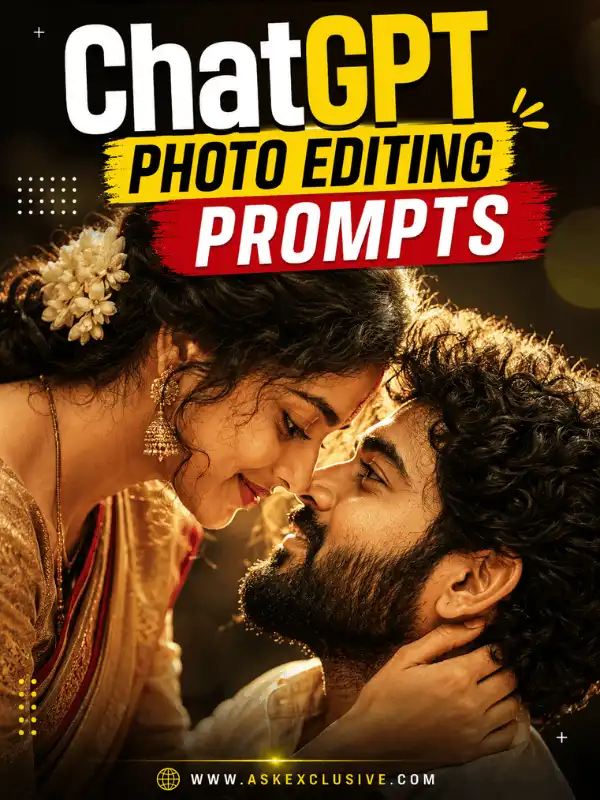
ChatGPT Photo Editing Prompts for Creative and Realistic Edits
Looking for useful ChatGPT photo editing prompts? This guide provides customizable instructions for improving portraits, changing backgrounds, replacing clothing, adjusting lighting, removing unwanted objects and creating controlled artistic transformations. Choose the editing task that matches your image, copy the prompt and replace the subject, colours, setting or visual style with your preferences.
For more accurate edits, tell ChatGPT exactly what should change and which details must remain unchanged. Upload only images you own or have permission to edit, and review every result before sharing it. Output can vary according to the source photo, selected area, current model, prompt wording and account features.
| Quick Answer: What Are ChatGPT Photo Editing Prompts? ChatGPT photo editing prompts are written instructions that explain how an uploaded image should be changed. A useful prompt describes the requested edit, the intended result and the original details that must remain unchanged, such as the face, age, skin tone, pose, clothing or composition. |
| Current ChatGPT Image-Editing Note (reviewed August 2, 2026) OpenAI’s official guide says users can upload an existing image or open an image created in ChatGPT, then describe the change directly. Where available, the editor also allows a selected area to be highlighted before the change is described. OpenAI notes that selections are not always exact and an edit may extend beyond the highlighted area. Aspect ratio can be changed with the interface or stated in the prompt. Features and limits can change. Verify the current Images in ChatGPT guide |
What Are ChatGPT Photo Editing Prompts?
A ChatGPT prompt for photo editing is different from a prompt that creates a completely new image. An editing prompt begins with an existing photograph and asks for a controlled modification. The instruction might improve exposure, replace the background, change clothing, remove an object, adjust a hairstyle or apply a new visual style.
The most important part is control. A vague instruction such as “make this photo beautiful” does not explain what should happen and may lead to changes in the face, skin texture, pose or composition. A stronger prompt identifies the editing target and protects the details that already work. This change-versus-preserve method is useful across portrait, family, adult couple and social-media edits.
Every edited image still needs manual review. Check facial identity, hands, fingers, body proportions, fabric, jewellery, text, background objects and edges around the subject. A prompt can reduce unwanted changes, but it cannot guarantee an identical result on every attempt.
For general prompts that create images from scratch, visit Chat GPT Prompt instead of expanding this editing pillar into a general image-generation page.
Can ChatGPT Edit an Uploaded Photo?
Yes. ChatGPT Images supports editing existing images through natural-language instructions. You can upload a photograph and describe the requested change, or edit an image already created in ChatGPT. Depending on the current interface, you may also be able to select a particular area and then describe what should be added, removed or updated.
For a controlled edit, include both parts of the request: what should change and what must stay the same. For example, do not write only “change the background.” Add the new location, time of day, perspective and lighting, then preserve the person’s face, hairstyle, clothing, pose and body proportions.
The interface, plan availability and image limits can change. Check the current OpenAI image help page if your screen looks different.
How to Use a ChatGPT Prompt for Photo Editing
1. Select a permitted image. Use a photograph you own or have permission to edit.
2. Upload the image. Add it to the conversation or open it in the current image editor.
3. State one main editing goal. Start with portrait correction, background replacement, clothing change or another single task.
4. List the details to preserve. Protect identity, age, skin tone, pose, body proportions, clothing or composition as required.
5. Describe the new visual details. Add the desired setting, colour, fabric, hairstyle, light or style.
6. Choose the image ratio. Keep the original ratio or request 1:1, 4:5, 9:16, 3:4 or another supported format.
7. Submit and inspect the complete image. Do not judge only the face; check hands, clothing edges and background details.
8. Request one targeted revision. If one part is wrong, correct that part instead of rewriting the entire image.
For a local edit, identify the exact area in words even when you use a selection tool. For example: “Remove only the sign in the upper-right background.” This reduces ambiguity if the highlighted selection is imprecise.
Simple ChatGPT Photo-Editing Prompt Formula
Use this copy-paste structure to create your own ChatGPT image edit prompt:
Uploaded image + requested change + details to preserve + new visual details + lighting or style + quality checks
| Formula Example Intended result: Show the complete change-versus-preserve structure. Edit the uploaded portrait by replacing the background with a softly blurred heritage courtyard. Keep the person’s original face, age, skin tone, hairstyle, expression, pose and body proportions unchanged. Match the lighting and shadows naturally, preserve realistic skin texture and remove any random text or duplicate objects. Change: Background and matching atmosphere. Preserve: Face, age, skin tone, hairstyle, expression, pose and proportions. Suggested ratio: Original ratio. Results note: Results may vary depending on the source image, current image model, selected area and prompt wording. |
This formula answers five practical questions: What image is being edited? What is the main change? Which details are protected? What should the new result look like? Which errors should be checked? Replace only the example fields that apply to your photograph.
Quick ChatGPT Photo Editing Prompts Text Copy and Paste
The following photo editing prompts for ChatGPT are ready to customize. Each prompt contains separate “change” and “preserve” instructions. Do not copy every detail blindly; replace clothing, location, colour, ratio and style so the result matches your own image.
| 1. Natural Portrait Enhancement Prompt Intended result: Improve light, colour and clarity without reshaping the person. Enhance the uploaded portrait with balanced natural lighting, accurate colour correction and gentle background separation. Keep the person’s original face, age, skin tone, hairstyle, expression, pose and body proportions unchanged. Preserve realistic skin texture, natural eye detail and accurate hands. Avoid excessive smoothing, face reshaping, artificial beauty filters, random text, logos and duplicate objects. Change: Exposure, colour balance, background separation and overall clarity. Preserve: Face, age, skin tone, hairstyle, expression, pose and proportions. Suggested ratio: Keep the original ratio, or use 4:5 for a portrait post. Results note: Results may vary depending on the source image, current image model, selected area and prompt wording. Related guide: High-quality photo-editing prompts |
| 2. Background Replacement Prompt Intended result: Replace only the setting while protecting the complete subject. Change only the background of the uploaded photograph to a peaceful heritage courtyard during golden hour. Keep the person’s face, hairstyle, clothing, pose, hands and body proportions unchanged. Match the new environment with realistic perspective, warm directional light, natural shadows and clean edges around the subject. Do not add extra people, random signs, logos or duplicate objects. Change: Location, atmosphere, perspective, light and background details. Preserve: Complete subject, clothing, pose, hands and facial identity. Suggested ratio: Use the original ratio unless a new platform format is required. Results note: Results may vary depending on the source image, current image model, selected area and prompt wording. Related guide: Google Gemini AI Photo Editing Prompts |
| 3. Clothing Change Prompt Intended result: Replace an outfit while keeping the same person and pose. Edit the uploaded portrait by replacing the current outfit with an elegant teal silk saree and a coordinated blouse. Keep the person’s original face, complexion, age, hairstyle, expression, pose and body shape unchanged. Add realistic fabric folds, accurate jewellery, natural shadows and detailed texture. Make the outfit fit the existing pose correctly, with no distorted hands, missing fabric or altered body proportions. Change: Outfit type, colour, fabric, jewellery and accessories. Preserve: Identity, body shape, pose, hands and background unless stated otherwise. Suggested ratio: Keep the original image ratio. Results note: Results may vary depending on the source image, current image model, selected area and prompt wording. Related guide: Clothing-change prompts |
| 4. Object Removal Prompt Intended result: Remove distractions and rebuild the cleared area naturally. Remove the signboard and the two distracting people from the background of the uploaded photo. Keep the main subject, foreground, clothing, pose and composition unchanged. Rebuild the cleared areas using consistent background texture, perspective, lighting and shadows. Check that no repeated patterns, partial objects, extra limbs, random letters or unnatural empty patches remain. Change: Only the named objects and the pixels directly behind them. Preserve: Main subject, foreground, composition, light and all unrelated details. Suggested ratio: Keep the original ratio. Results note: Results may vary depending on the source image, current image model, selected area and prompt wording. |
| 5. Cinematic Photo Transformation Prompt Intended result: Create a movie-style look while keeping the subject recognizable. Transform the uploaded portrait into a realistic cinematic photograph set on a misty city street during blue hour. Preserve the person’s recognizable facial features, age, skin tone, hairstyle, pose and body proportions. Add soft street lights, atmospheric depth, subtle rim lighting and balanced film-style colour grading. Keep natural skin texture and realistic shadows. Do not turn the image into a cartoon or change the person’s identity. Change: Setting, atmosphere, lighting and colour treatment. Preserve: Recognizable subject, pose, age, skin tone and realistic anatomy. Suggested ratio: 3:4 or 4:5 for a cinematic portrait. Results note: Results may vary depending on the source image, current image model, selected area and prompt wording. Related guide: Cinematic photo prompts |
Choose the Right Photo-Editing Prompt
Use the table below to select the prompt category before editing. Keeping one clear goal makes the instruction easier to follow and reduces accidental changes.
| Editing goal | What to change | What to preserve | Suggested ratio |
| Improve a portrait | Light, colour and sharpness | Face, age and skin texture | Original or 4:5 |
| Replace a background | Setting and atmosphere | Subject, pose and clothing | Original |
| Change clothing | Outfit, colour and fabric | Face and body proportions | Original |
| Adjust a hairstyle | Hair length, style or colour | Face and identity | Original |
| Remove distractions | Specified objects | Main subject and composition | Original |
| Create a cinematic look | Light, colour and atmosphere | Recognizable subject | 3:4 or 4:5 |
| Edit an adult couple photo | Setting, clothing or style | Both adults’ identities | 3:4 or 4:5 |
| Combine old and current photos | Layout and positioning | Each person’s identity and age | 4:5 or 3:4 |
| Prepare a social image | Ratio and visual framing | Complete subject | 1:1, 4:5 or 9:16 |
Portrait Enhancement Prompts
Portrait enhancement should improve the photograph rather than replace the person. The best ChatGPT prompt for photo editing in this category identifies the exact quality problem—such as a dark face, flat colour, harsh shadow or weak background separation—and then protects the person’s facial structure and natural skin texture. Avoid instructions such as “make the face perfect” because they can encourage unwanted reshaping. Ask for realistic corrections, then inspect the eyes, hair edges, hands and clothing after the edit.
| Soft Indoor Portrait Correction Intended result: Correct a dim indoor portrait without making the skin artificial. Improve the uploaded indoor portrait by gently brightening the face, reducing the strong yellow colour cast and balancing the contrast. Preserve the person’s original facial structure, complexion, age, eye shape, hairstyle, expression, clothing and pose. Keep natural skin pores and realistic shadows. Reduce noise carefully without plastic smoothing, sharpen the eyes subtly and leave the background composition unchanged. Change: Brightness, white balance, contrast, noise and careful eye clarity. Preserve: Facial identity, age, skin texture, clothing, pose and composition. Suggested ratio: Original ratio or 4:5. Results note: Results may vary depending on the source image, current image model, selected area and prompt wording. Related guide: Read the high-quality photo-editing prompt guide |
How to customize this edit
- Name the visible quality problem instead of asking for a general “better” image.
- Use “subtle”, “natural” and “realistic” for controlled corrections.
- Avoid combining enhancement with an outfit, background and hairstyle change in one request.
Background Change Prompts
A useful ChatGPT image edit prompt for background replacement describes the new environment and explains how it should connect to the original subject. Include the location, time of day, depth, perspective and light direction. State “change only the background” when you do not want the pose or clothing modified. Clean subject edges are especially important around hair, jewellery and loose fabric. A convincing result should also match the shadows on the subject with the new environment.
| Garden Background Edit Intended result: Move a portrait into a natural garden without changing the person. Replace only the background of the uploaded portrait with a lush garden containing softly blurred green plants and small blue flowers during late-afternoon light. Keep the person’s face, hairstyle, outfit, jewellery, pose, hands and body proportions exactly as shown. Match the existing camera angle and depth of field. Add warm light and soft shadows that fall naturally across the subject, with clean hair edges and no duplicate flowers or people. Change: Background environment, depth, light and atmosphere. Preserve: Subject, outfit, pose, camera angle and body proportions. Suggested ratio: Original ratio. Results note: Results may vary depending on the source image, current image model, selected area and prompt wording. Related guide: Compare with Google Gemini AI photo editing prompts |
How to customize this edit
- Describe where the subject stands in relation to the new background.
- Ask for matching perspective, light direction and shadow softness.
- Mention specific edge areas that often fail, such as hair and transparent fabric.
Clothing Change Prompts
A ChatGPT photo editor prompt for clothing should name the full outfit, main colour, fabric, fit and accessories. It should also protect the existing body shape and pose. Clothing edits can look incomplete when the prompt describes only the front of the outfit or ignores sleeves, borders, jewellery and fabric folds. Ask the new clothing to follow the person’s posture and the original light so the result feels like one photograph rather than a pasted costume.
| Modern Formal Outfit Edit Intended result: Replace casual clothing with a polished formal look. Change only the clothing in the uploaded full-length portrait. Replace the current outfit with a well-fitted cream linen blazer, a simple white shirt, dark tailored trousers and clean brown shoes. Preserve the person’s original face, skin tone, hairstyle, age, pose, hands, body shape and background. Make the fabric folds, sleeve position, buttons and shadows follow the existing posture and lighting. Avoid changing the height or making the body slimmer. Change: Complete outfit, fabric, colours and footwear. Preserve: Face, body shape, pose, hands, height and background. Suggested ratio: Original ratio. Results note: Results may vary depending on the source image, current image model, selected area and prompt wording. Related guide: Explore clothing-change prompts |
How to customize this edit
- Describe the entire outfit from top to bottom.
- State whether jewellery, accessories or footwear should also change.
- Protect body proportions and hand placement explicitly.
Hairstyle Editing Prompts
Hairstyle edits work best when you request one controlled change. Describe the desired length, texture, parting, colour and volume, but protect the forehead, face shape and natural hairline. Asking for a very different hairstyle can also affect the ears, jewellery or shoulders, so inspect those areas carefully. For a realistic try-on, keep the clothing, background and facial expression unchanged unless they are part of the planned edit.
| Soft Layered Hairstyle Try-On Intended result: Test a new hairstyle without altering the face. Change only the hairstyle in the uploaded portrait to shoulder-length, softly layered waves with a natural centre part. Keep the person’s original face, forehead, eyebrows, skin tone, age, expression, clothing, pose, jewellery and background unchanged. Preserve a believable hairline and realistic strand detail. Match the existing light, add natural volume and avoid covering the eyes or reshaping the jawline. Change: Hair length, texture, parting and volume. Preserve: Face, forehead, hairline position, age, outfit and background. Suggested ratio: Original ratio. Results note: Results may vary depending on the source image, current image model, selected area and prompt wording. Related guide: See more hairstyle prompt ideas |
How to customize this edit
- Use a hairstyle that fits the visible head angle.
- Protect the natural hairline and facial outline.
- Request realistic individual strands rather than a smooth wig-like shape.
Lighting and Colour-Correction Prompts
Lighting correction is often safer and more predictable than requesting a complete visual transformation. Explain whether the image is too dark, too warm, oversaturated or unevenly lit. Then describe the desired result, such as neutral skin tones, softer highlights or balanced studio light. A targeted chatgpt prompt for photo editing should keep the clothing colours and background believable instead of applying one heavy filter to the whole photograph.
| Harsh Sunlight Correction Intended result: Reduce strong highlights and deep facial shadows in an outdoor photo. Correct the harsh midday lighting in the uploaded outdoor photograph. Reduce blown highlights on the forehead and clothing, lift the deep shadows on the face gently and balance the skin tone naturally. Keep the original subject, expression, clothing colours, pose, background and composition unchanged. Preserve realistic contrast and texture. Do not create a flat HDR effect, oversaturate the greenery or add artificial glow. Change: Highlights, shadows, colour balance and contrast. Preserve: Subject, expression, outfit colours, background and framing. Suggested ratio: Original ratio. Results note: Results may vary depending on the source image, current image model, selected area and prompt wording. |
How to customize this edit
- Describe the colour cast: yellow, blue, green or magenta.
- Ask for neutral, accurate or naturally warm skin tones.
- Protect important colours when the clothing or product shade matters.
Object Removal and Image Cleanup Prompts
For object removal, name the item and its exact location. “Remove distractions” is too broad because the model may delete useful background details. Explain what should fill the cleared area, such as wall texture, plants, pavement or sky, and preserve the main subject and composition. After the edit, zoom in for repeated patterns, partial objects and unnatural empty patches. Removing copyright, ownership or authenticity marks is not an appropriate use of this technique.
| Foreground Cleanup Prompt Intended result: Remove a small unwanted object near the subject’s feet. Remove only the red plastic bottle located on the ground near the subject’s left foot. Keep the person, shoes, clothing, pose, surrounding flowers and complete composition unchanged. Reconstruct the cleared ground using the same stone texture, perspective, light and shadow found around it. Do not crop the image, alter the feet or remove any other object. Change: The specifically located unwanted object and the area behind it. Preserve: Subject, feet, nearby objects, crop, lighting and composition. Suggested ratio: Original ratio. Results note: Results may vary depending on the source image, current image model, selected area and prompt wording. |
How to customize this edit
- Identify the object by colour, position and nearby landmark.
- Use “remove only” to stop unrelated cleanup.
- State what texture should replace the object.
Creative and Cinematic Transformations
Creative transformations can change the mood, setting and colour treatment of an uploaded photo while keeping the person recognizable. Choose one clear visual direction—cinematic, editorial, vintage or soft aesthetic—instead of mixing several unrelated styles. Protect the person’s age and identity, and request realistic light interaction so the result remains photographic. Use the original image only when you own it or have permission to edit it.
| Vintage Café Transformation Intended result: Turn a modern portrait into a realistic 1970s-inspired editorial image. Transform the uploaded portrait into a realistic 1970s-inspired editorial photograph inside a classic café. Keep the person’s recognizable facial features, age, skin tone, hairstyle and pose unchanged. Replace the modern background with warm wooden furniture, soft window light and subtle period details. Apply restrained film grain, gentle brown tones and natural contrast. Avoid cartoon styling, heavy sepia, fake text, logos or changes to the person’s identity. Change: Setting, colour treatment, atmosphere and period details. Preserve: Identity, age, face, pose and natural anatomy. Suggested ratio: 3:4 or 4:5. Results note: Results may vary depending on the source image, current image model, selected area and prompt wording. Related guide: Read the cinematic photo prompt guide |
How to customize this edit
- Choose one defined style and a matching location.
- Keep colour grading subtle enough to preserve skin tones.
- Request period details without adding brand logos or misleading historical claims.
Adult Couple Photo Editing Prompts
When editing a romantic photograph, describe both subjects as adults and protect both identities. State whether clothing, lighting or the setting should change, and make sure the prompt does not accidentally merge faces, hands or body proportions. If the two people are positioned at different distances from the camera, ask the edit to preserve their original scale and placement. Use only a photo that both people have allowed you to edit.
| Adult Couple Garden Edit Intended result: Improve an adult couple photo with a coordinated setting and light. Edit the uploaded photograph of an adult couple while keeping both people recognizable. Replace the background with a softly lit flower garden, coordinate their clothing colours using subtle teal and cream accents, and improve the lighting naturally. Preserve both adults’ faces, ages, skin tones, hairstyles, poses, hand positions, body proportions and relative placement. Keep realistic fabric, clean edges and natural shadows. Do not merge facial features or add extra fingers. Change: Background, coordinated colour accents and lighting. Preserve: Both adults’ identities, poses, hands, proportions and placement. Suggested ratio: 3:4 or 4:5. Results note: Results may vary depending on the source image, current image model, selected area and prompt wording. Related guide: See complete couple prompts for ChatGPT |
How to customize this edit
- State clearly that both romantic subjects are adults.
- Protect each person’s identity separately.
- Inspect overlapping hands, arms and clothing after the edit.
Childhood and Current Photo Editing
A childhood-and-current composite combines two separate photographs into one new composition. Label image one and image two clearly, preserve the age shown in each source photograph, and describe where each person should appear. The final image should be presented as an AI-created composite—not as proof that the scene was genuinely photographed. Keep child-related edits age-appropriate, and use family images only with permission.
| Then-and-Now Composite Prompt Intended result: Place a childhood photo and a current adult photo in one respectful composition. Create an AI-edited then-and-now composite using the two uploaded photographs. Place the child from image one on the left and the same person as an adult from image two on the right, standing in a simple studio setting. Preserve the child’s original age, face, hairstyle and clothing from image one, and preserve the adult’s face, age, hairstyle and clothing from image two. Match scale, perspective, floor shadows and colour balance. Do not age the child or present the result as a genuine captured event. Change: Layout, shared background, scale and lighting match. Preserve: Each photograph’s identity, age, clothing and recognizable features. Suggested ratio: 4:5 or 3:4. Results note: Results may vary depending on the source image, current image model, selected area and prompt wording. Related guide: Explore childhood and current photo prompts |
How to customize this edit
- Label each uploaded image and the role it should play.
- Protect the age visible in each source photo.
- Disclose that the result is an AI-created composite.
Social-Media Photo Editing Prompts
Social-media editing is mainly about crop, safe space and visual hierarchy. Choose 1:1 for a square post, 4:5 for a portrait feed image and 9:16 for a Story or Reel. Ask ChatGPT to keep the complete face and important hand gestures visible. When you need space for a headline, request clean negative space instead of asking the image model to generate long text. Add the final typography in a design editor for better spelling and control.
| 9:16 Reel Cover Adaptation Intended result: Extend a portrait vertically without cutting off important details. Adapt the uploaded portrait into a 9:16 vertical Reel-cover composition. Keep the complete face, hairstyle, shoulders and visible hands unchanged. Place the subject slightly below centre and extend the existing background naturally above the head to create clean space for a headline. Preserve the original lighting, skin tone, clothing and photographic style. Do not generate any text, logo or watermark inside the image. Change: Canvas ratio, background extension and subject placement. Preserve: Complete face, hands, clothing, light and visual identity. Suggested ratio: 9:16. Results note: Results may vary depending on the source image, current image model, selected area and prompt wording. Related guide: Browse ChatGPT trending prompts separately |
How to customize this edit
- Use 1:1, 4:5 or 9:16 according to the publishing platform.
- Request headline space, but add actual text later in a design tool.
- Keep key facial details away from interface overlays and crop edges.
ChatGPT Photo-Editing Prompt Customization Guide
A copy-paste prompt is a starting point. Replace the example details before generating the edit so the instruction reflects your photograph and publishing format.
Subject and Identity
State the number of people, whether romantic subjects are adults, and which identity details must remain recognizable. For a single portrait, protect the facial structure, age, complexion, expression and hairstyle. For two people, protect both identities and their relative placement.
Clothing and Accessories
Name the complete outfit, main colour, fabric, fit, jewellery, footwear and accessories. Explain whether the original clothing should stay or change. Protect body proportions so the new outfit follows the existing posture.
Pose and Composition
Describe whether the person is standing, sitting, walking, looking toward the camera or using a hand gesture. When the pose must remain, say so directly. For social images, include subject placement, headroom and safe space.
Background
Choose a clear environment such as a garden, beach, temple courtyard, wedding venue, palace, café, city street or mountain location. Add the time of day, atmosphere, depth and perspective.
Lighting
Select morning light, golden-hour light, balanced studio light, moonlight, cinematic evening light or soft indoor light. Ask the new light to interact naturally with the subject and produce consistent shadows.
Image Style
Use one main direction: realistic photography, cinematic portrait, editorial photography, traditional photography, vintage style or soft aesthetic photography. Avoid mixing realistic photography, cartoon art, oil painting and 3D animation unless that combination is intentional.
Image Ratio
- 1:1 — square post or carousel.
- 4:5 — portrait feed image.
- 9:16 — Story or Reel cover.
- 3:4 — general portrait or editorial image.
- 16:9 — blog cover or wide comparison image.
How to Preserve the Original Face
Face preservation is one of the most common concerns in ChatGPT photo editing. Use a clear source image and avoid combining an identity-preservation request with instructions that demand a different age, face shape or unrealistic beauty transformation.
| Reusable Face-Preservation Instruction Intended result: Protect the person’s recognizable identity during an edit. Preserve the original facial structure, complexion, eyes, eyebrows, nose, lips, jawline, age, hairstyle and recognizable identity. Do not replace, reshape or beautify the face. Keep natural skin texture and the original expression unless a specific expression change is requested. Change: Only the separate editing goal stated elsewhere in the prompt. Preserve: All listed facial and identity details. Suggested ratio: Use the ratio required by the main edit. Results note: Results may vary depending on the source image, current image model, selected area and prompt wording. |
Do not promise perfect identity preservation. Instead, make one edit at a time and compare the result with the source image. If the face changes, return to the strongest version and repeat the protected details. Avoid asking simultaneously for a much younger appearance, a different face shape, extreme skin smoothing and exact identity preservation because those instructions conflict.
Negative Instructions for Photo Editing
Negative instructions tell the image model which common errors to avoid. Keep them relevant to the planned edit instead of attaching a long generic list to every prompt.
| Reusable Negative Instruction Intended result: Reduce common anatomical, text and identity errors. Avoid distorted hands, extra fingers, duplicate people, altered facial identity, plastic skin, incorrect body proportions, random text, logos, watermarks and unrelated background changes. Change: No new change; this line supports the main prompt. Preserve: Identity, anatomy, composition and clean background details. Suggested ratio: Not applicable. Results note: Results may vary depending on the source image, current image model, selected area and prompt wording. |
Add only the risks that fit the image. For example, a waist-up portrait may not need a footwear instruction, while a full-length clothing edit should protect feet, hands and fabric edges. Do not request removal of ownership marks or use negative instructions to conceal deceptive editing.
Common ChatGPT Editing Problems and Fixes
| Problem | Recommended response |
| Face changed | Add a detailed identity-preservation instruction and remove conflicting beauty requests. |
| Too many elements changed | Use “change only” and request one targeted correction. |
| Clothing is incomplete | Describe the full outfit, fabric, sleeves, borders, footwear and accessories. |
| Background looks artificial | Request matching perspective, light direction, shadows and clean subject edges. |
| Skin looks plastic | Ask for natural texture, visible pores and no excessive smoothing. |
| Hands are distorted | Keep the original hand pose, simplify the edit and request accurate fingers. |
| Object remains visible | Identify its colour, exact location and nearby landmark. |
| Random text appears | Request no text, signs, logos or watermarks; add typography later. |
| Composition drifts | Repeat the original crop, camera angle and subject placement. |
| A revision makes the image worse | Return to the strongest version and make one small correction. |
When several revisions have reduced the quality, do not keep editing the weakest version. Return to the best earlier result and ask for one small, specific correction. This is often clearer than adding many new instructions to a version that already contains unwanted changes.
Original Image Example Plan
Use original before-and-after examples beside the relevant prompt sections. Label each image as AI-edited, explain what changed and avoid claiming that a result is guaranteed. The following filenames and alt-text concepts are prepared for WordPress publishing.
| Purpose | Composition | Ratio | Filename |
| Featured image | Several clean before-and-after edit concepts in one collage | 16:9 | chatgpt-photo-editing-prompts.webp |
| Portrait enhancement | Dim portrait beside a naturally corrected result | 16:9 | chatgpt-portrait-editing-prompt-example.webp |
| Background change | Original setting beside a garden replacement | 16:9 | chatgpt-background-edit-prompt-example.webp |
| Clothing change | Original outfit beside edited formal or traditional clothing | 16:9 | chatgpt-clothing-change-prompt-example.webp |
| Object removal | Original distraction beside a naturally rebuilt background | 16:9 | chatgpt-object-removal-prompt-example.webp |
| Cinematic edit | Natural portrait beside a controlled film-style transformation | 16:9 | chatgpt-cinematic-photo-edit-example.webp |
Featured image alt text: Collage showing portrait enhancement, background replacement and clothing-change examples made with ChatGPT photo-editing prompts.
Portrait enhancement alt text: Before-and-after portrait showing balanced lighting and natural skin texture after a ChatGPT edit.
Background change alt text: Before-and-after image showing a portrait background changed to a garden while the subject remains recognizable.
Clothing change alt text: Before-and-after portrait showing an outfit replacement with the face and pose preserved.
Object removal alt text: Before-and-after photo showing a named unwanted object removed and the background reconstructed.
Cinematic edit alt text: Before-and-after portrait showing a realistic cinematic transformation with the subject recognizable.
Caption pattern: AI-edited example created using a customized ChatGPT photo-editing prompt. Results may vary depending on the source image, model and prompt wording.
EDITORIAL NOTE: Add the original images only after Swetha completes and records the edits. For each example, record the exact prompt, source-image type, visible image experience/model, test date, correct changes, unexpected changes, revision and final limitation.
Frequently Asked Questions
What are ChatGPT photo editing prompts?
ChatGPT photo editing prompts are written instructions that describe how an uploaded image should change. A strong prompt states the editing goal, the desired result and the original details that must remain unchanged, such as the face, age, skin tone, pose, clothing or composition.
How do I edit a photo in ChatGPT?
Upload an image you own or have permission to edit, then describe the change in natural language. You can request the edit directly in the conversation or, where available, select a specific area and explain what should change. OpenAI’s current image guide is available at https://help.openai.com/en/articles/11084440-images-in-chatgpt.
What is the best prompt for photo editing in ChatGPT?
The best prompt clearly separates “change” instructions from “preserve” instructions. Use this formula: uploaded image + requested change + details to preserve + new visual details + lighting or style + quality checks. A focused prompt is usually easier to follow than several unrelated edits at once.
Can ChatGPT preserve the original face?
You can ask ChatGPT to preserve the original facial structure, complexion, eyes, eyebrows, nose, lips, jawline, age, hairstyle and recognizable identity. This can improve control, but no prompt can guarantee a perfectly identical face in every result. Review the edit manually.
Can I change only the background?
Yes. State “change only the background,” describe the new location and protect the subject, pose, clothing, hands and proportions. Ask for matching perspective, light direction, shadows and clean edges around hair and fabric.
Can I replace clothing in an uploaded photo?
Yes, where the image-editing feature supports the request. Describe the complete outfit, colour, fabric, jewellery and accessories. Preserve the face, body shape, pose and hands, and ask the new clothing to follow the existing light and posture.
Can ChatGPT remove an unwanted object?
A targeted object-removal prompt should name the object, identify its exact position and describe how the cleared area should be rebuilt. Do not use object removal to erase copyright, ownership, authenticity or safety information.
Why does the edited image look different from my request?
Results can vary because of the source image, model behaviour, prompt wording, selected area and the number of requested changes. Return to the strongest version and request one specific correction instead of repeatedly changing the whole image.
Are ChatGPT photo editing prompts free?
The prompt examples on this page are free to copy and customize. ChatGPT plan availability, limits and image features can change. As reviewed on August 2, 2026, OpenAI’s official Images in ChatGPT page states that ChatGPT Images 2.0 is available on all tiers, but account features and usage limits may still differ.
Can I use another person’s photograph?
Use another person’s photograph only when you have permission and a legitimate reason to edit it. Avoid edits that impersonate someone, create fake evidence, imply a false relationship or endorsement, or confuse viewers about whether an event really happened.
Can I use an AI-edited image commercially?
Review the current terms of the tool, confirm that you have rights to the source image and check whether the result uses protected brands, copyrighted material or another person’s likeness. OpenAI’s current terms and policies are listed at https://openai.com/policies/.
Where can I find trending ChatGPT editing prompts?
Use the separate ChatGPT trending prompts page at https://askexclusive.com/chatgpt-trending-prompt/. Keeping time-sensitive trend content separate prevents the evergreen photo-editing pillar from becoming repetitive or competing with a dedicated trending page.
Explore Related ChatGPT and Photo-Editing Guides
Use the evergreen guides below for focused editing tasks. Time-sensitive or Instagram-specific trend terms should remain on their own canonical trending page rather than being repeated throughout this pillar.
ChatGPT guides
- ChatGPT Image Prompts
- Chat GPT Prompt
- ChatGPT Trending Prompt
- Couple Prompt ChatGPT
Photo-editing guides
- 8K Photo Editing Prompt
- Dress Change Prompt
- Childhood Photo and Current Photo Prompt
- Cinematic Photo Prompt
- AI Photo Editing Archives
Related pillars
Final Thoughts
A useful ChatGPT photo editing prompt tells the tool what to change, what to preserve and how the final image should look. Start with one editing goal, customize the subject, clothing, pose, background, lighting and ratio, then inspect the complete result. Clear preservation instructions can reduce unwanted changes, but every AI-edited image still requires human review.
Use this pillar to choose the correct prompt category, then open the related guide when you need a deeper collection. Keep evergreen photo-editing instructions separate from rapidly changing trend pages, and label original before-and-after examples honestly.
| Start Editing Your Photo Choose an editing goal, copy a suitable prompt and replace the example details with your own requirements. Clearly state what ChatGPT should change and what it should preserve. Review the final image carefully before saving, sharing or publishing it. Browse ChatGPT Image Prompts | Explore AI Photo Editing Guides |
Author and Review Information
Written and manually reviewed by: Swetha
Swetha is an MCA graduate with five years of experience in blogging, YouTube and social media, along with two years of experience creating AI prompts. She uses Gemini and ChatGPT daily to develop practical image prompts, photo-editing ideas and beginner-friendly guides for AskExclusive.
Draft reviewed: August 2, 2026
Testing note: Add the visible ChatGPT image experience or model, completed test date and documented before-and-after observations only after Swetha has performed the tests. Do not publish an unverified testing claim.
AI Image and Safety Disclosure
Some example images on this page may be produced or edited with AI tools for educational and creative demonstration. AI-edited images should not be presented as genuine photographs of events that did not occur. Use only photographs you own or have permission to edit, avoid misleading identity changes, keep child-related edits age-appropriate and follow the current OpenAI usage policies and applicable laws.