
Image to Prompt Guide: Turn a Photo into an AI Prompt
Have an image but do not know how to describe it as an AI prompt? This image to prompt guide shows you how to identify the main subject, clothing, pose, background, lighting, composition, colour palette and visual style in a photograph, illustration or AI-generated image. You can then organize those visible details into a reusable prompt for Gemini, ChatGPT or another compatible AI image tool. The result is a visual interpretation, not a guarantee that you have recovered the original creator’s private prompt. Use only images you own, created, licensed or have permission to analyze, and remove personal or identifying details before uploading or sharing them.
| What is image to prompt? Image to prompt is the process of converting visible details in a photograph, illustration or generated image into written AI instructions. A useful output describes the subject, pose, clothing or materials, background, lighting, composition, visual style and approximate aspect ratio without inventing an identity, location, camera model or other information that cannot be confirmed from the image. |
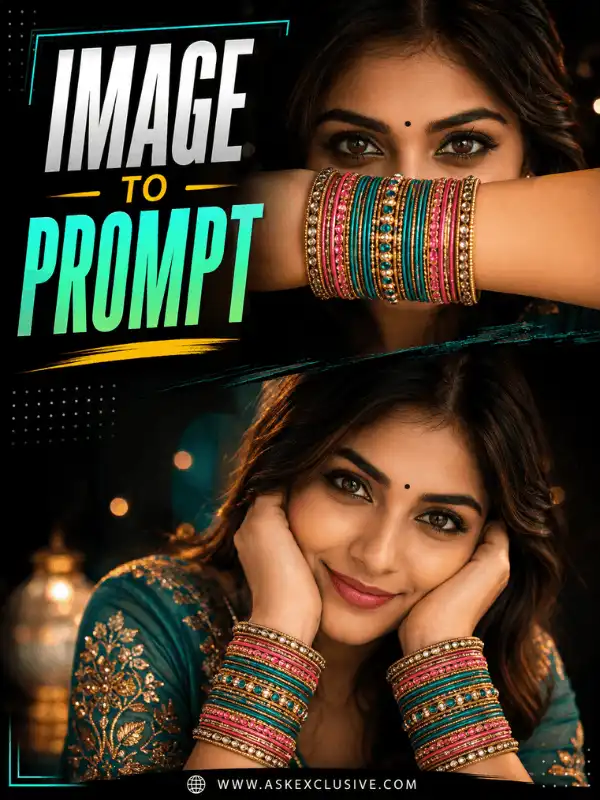
Quick Image-to-Prompt Example
Visible concept: An adult Indian woman in a teal saree standing in a heritage courtyard during warm light.
| Reusable prompt Create a realistic editorial portrait of an adult Indian woman wearing a teal silk saree with minimal gold jewellery. Show her standing in a heritage courtyard with one hand resting naturally near her waist and a calm expression. Add warm golden-hour light, soft background blur, realistic skin texture, detailed fabric and professional portrait photography. Use a 3:4 ratio. |
| Important This is a reconstructed visual description, not the confirmed original prompt used to create the source image. |
What Is Image to Prompt?
Image to prompt describes a workflow that starts with an existing visual and ends with a written prompt. You can complete the analysis manually by observing the image, or you can ask an image-capable AI system to identify visible elements and draft a description. In both cases, the useful part is not a vague sentence such as “a woman outside.” The useful result is a structured instruction that explains what is visible, how the scene is composed and which details should be preserved or changed.
This workflow can help beginners, bloggers, photographers and social-media creators understand why an image looks a particular way. It is also useful when you like the lighting, framing or mood of a reference and want to build an original variation. However, an image-to-prompt result normally cannot confirm the exact original prompt, negative prompt, seed, model settings, editing history, reference strength or camera equipment. Treat the output as a reconstructed visual description that can be reviewed and customized.
After creating the description, use it as a starting point in a compatible tool or continue with the broader https://askexclusive.com/image-prompts/ guide to learn how written instructions are turned into new images.
How Does Image-to-Prompt Analysis Work?
A good image analysis moves from obvious facts to careful interpretation. First, identify the main subject and count every important person or object. Next, record clothing, materials, pose, expression, props and placement in the frame. Then examine the setting, lighting direction, dominant colours, depth, camera framing and overall visual treatment. Finally, arrange the observations in a logical order so an image model can follow them.
Keep three levels of confidence separate. Visible facts are details you can directly observe, such as a blue saree, a garden background and light coming from one side. Reasonable interpretations are useful but less certain, such as an editorial portrait, a calm mood or golden-hour lighting. Unknown details include the exact camera model, lens, location, identity, seed or original private prompt. Do not present unknown details as facts.
Automated tools can speed up this work, but they may miscount subjects, assign the wrong fabric, ignore small objects or invent a location. Manual review is therefore part of the process, not an optional extra.
- Detect the main subject.
- Identify supporting people, objects and props.
- Describe visible clothing, materials and accessories.
- Record pose, action and expression.
- Describe the background and important foreground details.
- Estimate lighting, time of day and colour temperature.
- Identify close-up, waist-up, full-length or wide framing.
- Choose one clear visual style.
- Estimate the aspect ratio only when it is reasonably visible.
- Convert the observations into a concise, ordered prompt.
| Accuracy reminder Describe what the image shows. Do not guess a person’s name, private information, exact location, original prompt or hidden metadata. |
Visible facts, interpretation and unknown details
| Level | Example | How to use it |
| Visible fact | Teal saree, gold earrings, carved courtyard | Include directly and precisely. |
| Reasonable interpretation | Editorial portrait, warm mood, shallow depth of field | Use when it helps describe the visual result, but keep the wording general. |
| Unknown detail | Exact identity, camera model, lens, original prompt, seed | Do not state as confirmed information. |
Image to Prompt vs Text to Image
Image to prompt and text to image are opposite but connected workflows. Image to prompt starts with a visual and produces a written description. Text to image starts with written instructions and produces a new visual. The first process helps you understand composition and convert visible details into language; the second process helps you visualize an idea.
The distinction matters for site architecture and user expectations. This page owns the process of extracting and organizing details from an existing image. The separate AI image prompts pillar covers prompt writing, categories and creating images from text. Keeping those intents separate prevents the two pages from competing with each other while still allowing users to move naturally from analysis to generation.
Image to prompt compared with text to image
| Image to prompt | Text to image |
| Starts with an existing image. | Starts with written instructions. |
| Extracts visible details. | Creates a new visual concept. |
| Produces a written description or prompt. | Produces an image. |
| Helps analyze style, lighting and composition. | Helps visualize an idea or variation. |
| Cannot guarantee recovery of the original prompt. | Does not require an original image. |
How to Create a Prompt from an Image
Use the following practical workflow whenever you need to create prompt from image content. The method works for clear portraits, family photographs, product images, landscapes, architecture, food photography, illustrations and AI-generated visuals that you are permitted to use.
Step 1 — Choose a Suitable Image
Select a clear image in which the main subject, clothing or materials, pose and setting are visible. Heavy blur, extreme cropping, low resolution and hidden faces make accurate analysis harder. Use an original, licensed or permitted image. Avoid confidential photographs and screenshots containing names, addresses, notifications or location details.
Step 2 — Identify the Main Subject
State whether the subject is a person, group, object, product, building, animal, food item or environment. Count the subjects, describe their position and use a general age range only when it is relevant and visually supportable. Do not guess identity, ethnicity, occupation or relationship unless the user provides that context.
Step 3 — Record Visible Details
- Clothing, garment type, colour, fabric and accessories.
- Pose, action, expression and eye direction.
- Props, furniture, products or foreground objects.
- Background, architecture, landscape or studio elements.
- Soft, hard, warm, cool, directional or back lighting.
- Dominant colour palette and contrast.
- Close-up, head-and-shoulders, waist-up, full-length or wide framing.
- Realistic, cinematic, editorial, vintage, illustrated or other broad style.
Step 4 — Build a Structured Prompt
Arrange the details in a natural sequence: subject first, then appearance and clothing, pose and expression, setting, lighting, composition, style, ratio and quality. This is easier for an image model to follow than a random chain of adjectives.
| Copyable prompt Main subject + visible appearance + clothing or materials + pose or action + expression + supporting objects + background + lighting + composition + visual style + aspect ratio + quality requirements |
Step 5 — Remove Unsupported Assumptions
Delete any identity, location, emotional backstory, exact equipment or unseen clothing that the image does not confirm. A prompt is more trustworthy when it is slightly less specific than when it invents false precision.
Step 6 — Customize the Result
Change the subject, outfit colour, background, season, lighting or composition to create an original variation rather than a close copy. Preserve only the visual qualities that matter to your goal.
Step 7 — Test and Revise
Generate a result, check which details were followed and revise one unclear instruction at a time. Review faces, hands, body proportions, object count, clothing, background elements, perspective, random text and logos before publishing.
Recommended Image-to-Prompt Formula
A dependable prompt formula prevents important details from being missed while keeping the output readable. You do not need to fill every component for every image. Include only the details that contribute to the visible concept or the change you want to make.
| Copyable prompt Main subject + visible appearance + clothing or materials + pose or action + expression + supporting objects + background + lighting + composition + visual style + aspect ratio + quality requirements |
| Complete example near the top of the page Create a realistic editorial portrait of an adult Indian woman wearing a teal silk saree with minimal gold jewellery. Show her standing in a heritage courtyard with one hand resting naturally near her waist and a calm expression. Add warm golden-hour light, soft background blur, realistic skin texture, detailed fabric and professional portrait photography. Use a 3:4 ratio. |
Image-to-prompt component checklist
| Component | Question to answer |
| Main subject | Who or what is most important? |
| Subject count | How many people or important objects are visible? |
| Appearance | Which visible characteristics matter to the concept? |
| Clothing or materials | What outfit, colour, fabric, finish or texture is visible? |
| Pose or action | How is the subject positioned and what is happening? |
| Expression | What expression or eye direction is visible? |
| Props | Which objects are held, worn or displayed? |
| Background | Where does the scene appear to take place? |
| Lighting | Is the light soft, hard, warm, cool, natural or directional? |
| Composition | Is it close-up, full-length, symmetrical, off-centre or wide? |
| Visual style | Is it realistic, cinematic, editorial, vintage or illustrated? |
| Colour palette | Which colours dominate the scene? |
| Aspect ratio | Is the format square, portrait, vertical or landscape? |
| Quality | Which details need to remain clear and realistic? |
Photo to Prompt: Examples for Different Image Types
A photo to prompt workflow should change slightly depending on the image category. Portraits require attention to clothing, pose, expression and framing. Product photographs need materials, viewing angle, reflections and surface details. Landscapes need atmosphere, foreground, depth and weather. Group images require accurate subject count and placement. The following examples show the level of detail to aim for without turning this pillar into a full prompt archive.
Individual Portrait
Visible image: an adult man standing beside an urban garden in late-afternoon light.
| Copyable prompt Create a realistic outdoor portrait of an adult Indian man wearing a cream linen shirt. Show him standing naturally beside a softly blurred urban garden during late-afternoon light. Use realistic skin texture, detailed hair, natural hands and professional portrait photography. Use a 3:4 ratio. |
| Customize Change the shirt colour, background, expression, light direction or ratio. |
Professional Portrait
Visible image: an adult professional seated in a minimal studio.
| Copyable prompt Create a polished professional portrait of an adult Indian creator seated in a clean studio. Use formal modern clothing, a relaxed upright posture, soft directional lighting, neutral background tones, realistic skin texture and sharp eyes. Frame the image as a 4:5 portrait with professional editorial photography. |
| Customize Change the profession, clothing, desk objects, background colour or camera framing. |
Adult Couple
Visible image: two adults walking together beside a lake.
| Copyable prompt Create a realistic portrait of an adult Indian couple walking beside a calm lake during sunset. Dress them in coordinated elegant outfits and show relaxed natural expressions. Add warm reflections, gentle background blur, accurate hands, detailed clothing and cinematic portrait photography. Use a 4:5 ratio. |
| Customize Change the outfits, pose, season, location or visual mood. |
Family Photo
Visible image: four family members seated together in a living room.
| Copyable prompt Create a warm realistic family portrait of four Indian family members seated naturally in a bright living room. Keep the group placement balanced, use coordinated but non-identical clothing, relaxed smiles, soft window light, accurate hands and professional lifestyle photography. Use a 4:3 ratio. |
| Customize State the correct number of people and change clothing, seating arrangement or room style. |
Product Image
Visible image: a ceramic perfume bottle on a stone surface.
| Copyable prompt Create a premium product photograph of a ceramic perfume bottle placed on a light stone surface. Show the bottle at a three-quarter angle with controlled reflections, soft side lighting, a subtle shadow, clean negative space and realistic commercial photography. Use a 1:1 ratio. |
| Customize Change the product material, surface, lighting colour, camera angle or background. |
Landscape
Visible image: a mountain valley under misty morning light.
| Copyable prompt Create a wide cinematic landscape of a green mountain valley covered with light morning mist. Include layered hills, a winding river in the foreground, soft diffused sunlight, natural colours, atmospheric depth and detailed landscape photography. Use a 16:9 ratio. |
| Customize Change the weather, season, foreground, time of day or palette. |
Illustration
Visible image: a pastel botanical illustration.
| Copyable prompt Create a soft botanical illustration featuring delicate wildflowers and green leaves arranged on a warm cream background. Use a pastel palette, fine hand-drawn lines, subtle paper texture, balanced negative space and an elegant editorial composition. |
| Customize Change the medium, line weight, flower types, palette or layout. |
Uploaded-Photo Edit
Visible image: a portrait that needs a new background while the person remains recognizable.
| Copyable prompt Edit the uploaded portrait by replacing the background with a softly blurred heritage courtyard. Preserve the person’s original face, age, skin tone, hairstyle, pose and body proportions. Match the new background with natural lighting, perspective and shadows, and keep the final result realistic. |
| Customize Specify exactly what must change and what must remain unchanged. |
Mom and Son AI Prompt Generator
Visible image: an Indian mother and her adult son standing in a garden.
| Copyable prompt Create a warm realistic portrait of an Indian mother and her adult son standing together in a peaceful garden. Dress them in coordinated traditional clothing and show relaxed natural smiles. Add soft golden-hour light, accurate hands, realistic skin texture and professional family photography. Use a 3:4 ratio. |
| Customize Change the clothing, standing or seated pose, celebration, background or light. |
AI Image Prompt Generator: What to Expect
An AI image prompt generator can analyze a reference and draft a description, but a useful generator should identify more than the main object. Review whether the output captured subject count, scene, clothing or materials, colours, lighting, composition, aspect ratio and important background objects. A one-line caption is not the same as a production-ready image prompt.
Check every automatic output before use. The system may invent accessories, misread a pose, guess a famous location, assign the wrong age range or add unnecessary camera specifications. It may also include identifying details from visible text. Remove unsupported claims and private information, then rewrite the output in your preferred structure.
AskExclusive should describe this page as a guide unless a real, tested upload feature is added. The phrase ai image prompt generator may be discussed because it matches user intent, but the page should not display a fake upload interface or claim that it analyzes files automatically.
| Guide, not a live tool This pillar teaches a manual and assisted workflow. Do not use “upload here” or “generate instantly” language unless a functioning feature is actually available on the page. |
AI Photo Prompt Generator: Recommended Output Fields
For photography-style references, an ai photo prompt generator should return clear fields that a user can inspect before combining them into a final instruction. Structured fields make errors easier to find than a long paragraph produced in one step.
- Subject and subject count
- Visible clothing and accessories
- Pose and expression
- Location or setting
- Lighting direction and quality
- Camera framing and composition
- Photography style
- Approximate aspect ratio
- Quality and realism requirements
Three-Pass Method
Pass 1 — Facts: write only what is directly visible, such as one adult person, blue saree, courtyard, warm light and waist-up framing. Pass 2 — Visual interpretation: add useful general terms such as editorial portrait, golden-hour mood and shallow depth of field. Pass 3 — Prompt construction: combine the confirmed facts and careful interpretations into one clear instruction. This method also answers conversational searches such as give prompt from image because it produces a summary, reusable prompt, customization options and a ratio recommendation.
Image Generator Prompt: Turn a Description into an Instruction
A literal description records what is present. An image generator prompt turns that description into an actionable request. Compare “woman in saree standing outside” with the structured version below. The improved version identifies the subject, clothing, setting, pose, expression, light, quality and ratio while staying close to visible information.
| Copyable prompt Create a realistic full-length portrait of an adult Indian woman wearing a blue silk saree in a heritage courtyard. Show a relaxed standing pose, natural expression, warm golden-hour lighting, detailed fabric, realistic skin texture and soft background blur. Use a 3:4 ratio. |
Image Generation vs Photo Editing
Do not confuse a generation prompt with an editing prompt. A generation prompt asks for an entirely new image and normally begins with language such as “Create a portrait of…”. An editing prompt starts with an uploaded image and explains what should change and what must be preserved. Mixing the two can cause a tool to replace the subject when you only wanted a new background, or preserve an image when you wanted a fresh concept.
Generation prompt compared with editing prompt
| Workflow | Purpose | Recommended formula |
| Image generation | Create a new visual from written instructions. | Subject + clothing/materials + pose/action + background + lighting + style + ratio. |
| Photo editing | Modify an uploaded image while preserving selected details. | Uploaded image + requested change + details to preserve + new visual details + matching light/perspective + quality. |
AI Photo Editor Prompt Generator Example
An ai photo editor prompt generator should clearly separate change instructions from preserve instructions. Detailed editing collections belong on the dedicated Gemini and ChatGPT editing pillars; this page only explains the workflow boundary.
| Copyable prompt Edit the uploaded portrait by replacing the background with a softly blurred garden during golden hour. Preserve the person’s original face, age, skin tone, hairstyle, clothing shape, pose and body proportions. Match the new background with natural light direction, perspective, edge detail and shadows. Avoid plastic skin, distorted hands, duplicate objects, random text and logos. |
| Detailed editing guides Gemini photo-editing prompts , ChatGPT photo-editing prompts |
How to Improve an Automatically Generated Prompt
Automatic outputs are often too generic or too confident. Improve them by adding missing visible details, deleting invented information and selecting one consistent style. Do not make the prompt longer simply to sound advanced. Every phrase should either describe the source concept, specify an intentional change or prevent a likely error.
Weak prompt and improved prompt
| Version | Example |
| Weak | Woman outside wearing traditional dress. |
| Improved | Create a realistic full-length portrait of an adult Indian woman wearing an emerald-green silk saree with a gold border. Show her standing naturally in a carved heritage courtyard during warm morning light. Add realistic skin texture, detailed fabric, accurate hands and professional editorial photography. Use a 3:4 ratio. |
- Specify the exact visible subject count.
- Clarify adult or child age range only when relevant.
- Describe clothing, colour and fabric accurately.
- Add the pose, action and expression.
- Describe important setting elements.
- State the lighting direction and mood.
- Choose one primary visual style.
- Add a known or approximate ratio.
- Remove unsupported identity, location and equipment claims.
- Keep only details that change the visual result.
Recommended Aspect Ratios
Use the source composition as a guide, but do not claim an exact ratio from a cropped screenshot unless the dimensions are known. For an existing photo edit, retain the original ratio unless the user requests reframing.
Suggested aspect ratios
| Visible composition | Suggested ratio |
| Square composition | 1:1 |
| Portrait social image | 4:5 |
| Detailed vertical portrait | 3:4 |
| Story or Reel composition | 9:16 |
| Landscape photograph | 4:3 |
| Wide cinematic image | 16:9 |
| Existing photo edit | Retain the original ratio unless reframing is requested. |
Negative Instructions: Use Only What Is Needed
Negative instructions can prevent common failures, but an excessively long list may distract from the positive description. Add only the errors that are likely for the image type. Strong positive instructions about subject count, pose, clothing and background are usually more useful than a generic wall of negatives.
| Copyable prompt Avoid distorted hands, extra fingers, duplicate subjects, altered facial identity, incorrect clothing, plastic skin, random text, logos, watermarks and unrelated background objects. |
How to Use Reference Images Safely
Reference-image analysis can expose personal, ownership and identity risks. Upload only images you own, created, licensed or have permission to use. Remove visible names, addresses, school information, vehicle plates, notifications, documents and location clues where practical. Do not ask a tool to identify an unknown person or reveal private details.
Use extra care with children’s photographs. Keep the concept family-safe, use age-appropriate clothing and poses, limit unnecessary sharing and avoid including identifying information. Do not use image analysis to make fake documents, remove ownership watermarks, fabricate evidence, impersonate public figures or present a reconstructed image as proof of a real event.
For copyrighted or strongly recognizable creative work, describe broad characteristics such as warm cinematic lighting, painterly texture, editorial composition, vintage film grain, pastel colours or dramatic shadows. Do not market the workflow as a way to recover a private prompt, copy a living creator’s distinctive style exactly, reproduce a protected film frame, duplicate a branded character or remove a watermark.
- Analyze only owned, licensed or permitted images.
- Avoid confidential or highly private photographs.
- Remove personal and location information.
- Do not identify unknown people.
- Avoid celebrity-face replication or false endorsements.
- Keep children’s images private, family-safe and age-appropriate.
- Do not remove watermarks or ownership marks.
- Do not create fake identity documents or misleading evidence.
- Label AI-generated and AI-edited examples clearly.
- Describe the prompt as an interpretation, not the confirmed original.
| Permission and ownership A technically possible upload is not automatically a permitted use. Review the source image, the AI platform’s current terms and any applicable rights before publishing or commercial use. |
Using the Result in Gemini, ChatGPT or Another Tool
After reviewing the extracted prompt, paste it into a compatible image-generation or editing workflow. When the platform supports image input, you can also provide the reference and ask the system to separate visible facts from assumptions before producing the final prompt. Availability, limits, supported formats and regional access can change, so check the platform’s current official help pages.
Official Google guidance currently describes uploading photos and other files to Gemini Apps for analysis. Official OpenAI guidance describes adding static image inputs to ChatGPT conversations for interpretation. These capabilities do not guarantee exact prompt recovery or exact image recreation, and the result still needs manual review.
Adapt the wording to the platform rather than duplicating complete platform-specific prompt collections here. Use the related guides for more focused instructions.
| Platform prompt guides Gemini AI photo prompts , ChatGPT image prompts |
| Platform information reviewed 2 August 2026 OpenAI: ChatGPT Image Inputs FAQ, Google: Upload & analyze files in Gemini Apps |
Common Image-to-Prompt Problems and Fixes
Most failures come from missing structure, unsupported assumptions or confusion between generation and editing. Use the table below as a quick troubleshooting guide.
Troubleshooting table
| Problem | Recommended fix |
| Prompt is too generic | Add clothing or materials, pose, setting, lighting and composition. |
| Subject count is incorrect | State the exact visible number of people or objects. |
| Tool invents details | Separate visible facts from interpretations and unknowns. |
| Clothing description is wrong | Identify garment type, colour, fabric and accessories carefully. |
| Camera details are guessed | Remove unverified camera and lens claims. |
| Background is ignored | Name the important architecture, landscape or objects explicitly. |
| Prompt is too long | Keep only details that influence the visual result. |
| Prompt copies the source too closely | Change the subject, palette, setting, styling or composition. |
| Editing and generation are confused | Use the correct workflow formula and opening verb. |
| Private information appears | Delete names, locations, visible text and identifying details. |
| Ratio is incorrect | Use known dimensions or describe the ratio as approximate. |
| Generated result differs | Treat the prompt as a reusable interpretation and revise one detail at a time. |
Frequently Asked Questions
What does image to prompt mean?
It means converting the visible elements of a photograph, illustration or generated image into written AI instructions. The prompt usually describes the subject, clothing or materials, pose, background, lighting, composition, style and aspect ratio.
How do I create a prompt from an image?
Identify the main subject, count important people or objects, record visible details, separate facts from assumptions, arrange the details in a structured formula, remove private information and revise the prompt after testing the result.
Can AI identify the original prompt from a picture?
Usually not with certainty. An AI system can reconstruct a descriptive prompt from visible details, but it cannot normally confirm the original private prompt, negative prompt, seed, model settings, reference strength or editing history.
What is a photo prompt generator?
A photo prompt generator is a tool or workflow that analyzes a photograph and drafts written instructions describing its subject, scene, lighting, framing and photography style. The automatic output should still be reviewed manually.
Can I turn a personal photo into a prompt?
Yes, when you own the photograph or have permission to use it. Remove private details, avoid unnecessary identity information and use extra care with children’s images and confidential photographs.
Which details should an image prompt contain?
Include the main subject, subject count, visible appearance, clothing or materials, pose or action, expression, props, background, lighting, composition, visual style, colour palette, ratio and necessary quality instructions.
Can I use the prompt in Gemini and ChatGPT?
The general prompt structure can be adapted for Gemini, ChatGPT and other compatible tools. Available image input, generation and editing features can differ by platform, account, region and model, so check current official documentation.
What is the difference between image generation and photo editing?
Image generation creates a new visual from instructions. Photo editing starts with an uploaded image and explains what to change and what to preserve. Use a separate formula for each workflow.
Why does the generated image not match the reference?
AI tools interpret wording differently and may change faces, objects, background details or composition. The source may also contain details that were not described. Treat the prompt as an interpretation and revise one missing or incorrect detail at a time.
Can an image-to-prompt tool identify the camera or lens?
It may guess from visual characteristics, but the image alone often cannot confirm the exact equipment. Do not present an estimated camera or lens as verified metadata.
How do I preserve the original face in an edit?
Use an editing prompt that clearly tells the tool to preserve the original face, age, skin tone, hairstyle, expression and proportions while changing only the requested elements. Results can still vary, so review the output carefully.
Can I analyze a copyrighted image?
You may be able to describe general visible characteristics, but ownership and permitted use still matter. Avoid exact duplication, watermark removal, protected characters, film-frame recreation and claims that you recovered a private prompt.
Can I use a family photo?
Use a family photograph only with appropriate permission. Keep the description family-safe, remove identifying information, state the correct subject count and handle children’s images privately and carefully.
Are image-to-prompt tools free?
Pricing, usage limits and availability vary by platform and may change. Review the current official plan and feature information before telling readers that a particular tool is free.
Can I use the resulting prompt commercially?
Review the current terms of the AI platform and the rights attached to the source image and generated output. Avoid unauthorized copyrighted material, trademarks, another person’s identity and misleading commercial endorsements.
Explore Related Prompt Guides
Use related guides according to the next action you want to take. These links support the pillar without creating competing pages for photo to prompt, create prompt from image or give prompt from image variations.
| Prompt-writing and example guides AI image prompts , Images with complete prompts , Aesthetic prompt ideas |
| Platform guides Gemini AI photo prompts , Gemini photo-editing prompts , ChatGPT photo-editing prompts |
| Subject guides Family photo prompts , Couple prompts |
Final Thoughts
A useful image to prompt workflow does more than produce a quick caption. It observes the subject, clothing or materials, pose, background, lighting, composition and style; separates visible facts from assumptions; and turns the result into a structured instruction. Choose the correct formula for image generation or photo editing, remove private and unsupported details, customize the prompt to create an original variation and review every result before publishing. Start with the component checklist on this page, then open the related image-prompt or platform guide for your next step.
| Turn Your Image into a Reusable Prompt Identify the main subject, clothing or materials, pose, background, lighting and composition. Combine those details into a structured prompt, remove unsupported assumptions and customize the result before using it in an AI image tool. Browse Image Prompts Explore AI Image Tools |
Author and Review Information
| Written and manually reviewed by Swetha AI Prompt Creator and Digital Content Specialist Swetha is an MCA graduate with five years of experience in blogging, YouTube and social media, plus two years of experience in AI prompt creation. She uses Gemini and ChatGPT daily to create practical AI image prompts, photo-editing ideas and beginner-friendly guides for AskExclusive. Published: 02.08.2026 Last content review: 2 August 2026 Testing information:ChatGPT – Modal instant5.5. Recommended trust links: Prompt Testing Methodology, Corrections Policy, AI Content and Image Disclosure, and the author profile. |
AI Content and Image Disclosure
Some example images and prompt outputs on this page may be produced with AI tools for educational and creative demonstration. AI-generated or AI-edited images should be labelled clearly and should not be presented as genuine photographs of real events. Results may vary by platform, model, settings and reference image.